
AI Metadata & Content Credentials
How to Remove AI Metadata from Photos: A Tested Guide
Follow a real ComfyUI image from its original prompt and workflow data to a cleaned download, then check exactly what changed.
To remove AI metadata from photos, inspect the original file, remove the embedded fields you do not want to share, download the cleaned copy, and inspect that download again. If you want to keep the existing image without re-encoding it, choose Keep original when the format supports it.
That is the practical answer. The important follow-up is: what did the tool actually remove? A smaller file or a green success message is not enough to answer that on its own.
In this guide, we tested a publicly available ComfyUI PNG that contains both prompt data and a workflow. We followed it through our browser-based tool, checked the downloaded file, and compared the decoded pixels before and after cleaning. The two text records were removed; the pixels in this particular sample were identical.
This is a file-level cleanup guide, not a way to make AI-generated images undetectable. It does not demonstrate removal of SynthID, visible watermarks, or a platform's AI label.
The image we tested
Our main example is the PNG linked from the official ComfyUI SDXL examples page. ComfyUI explains that the example can be loaded back into its interface to recover the workflow. That makes it useful for a test: there is actual embedded generation data to inspect, rather than an assumption based on how the image looks.
We used a fixed version of the original PNG, not a screenshot, social-media download, or file with test fields added by us.
- Original filename:
sdxl_simple_example.png - Dimensions: 1024 × 1024 pixels
- Original file size: 1,257,779 bytes
- Test date: September 7, 2026
- Output mode: Keep original
For anyone repeating the test, the original file's SHA-256 is:
038bf565ca4db12e070db3507bed9a6242f0d5200a392962172a207af32ad941
The screenshots below show our tool's actual interface and metadata fields. We link to the upstream image rather than republishing its pixels. The cover is a conceptual illustration, not a before-and-after test image.
Inspect the AI metadata before cleaning
Start with the file you intend to share. Open the AI metadata remover, choose the image, and expand its filename in the inspection results. Selecting a file reads it locally in your browser; the image contents are not uploaded to our server.
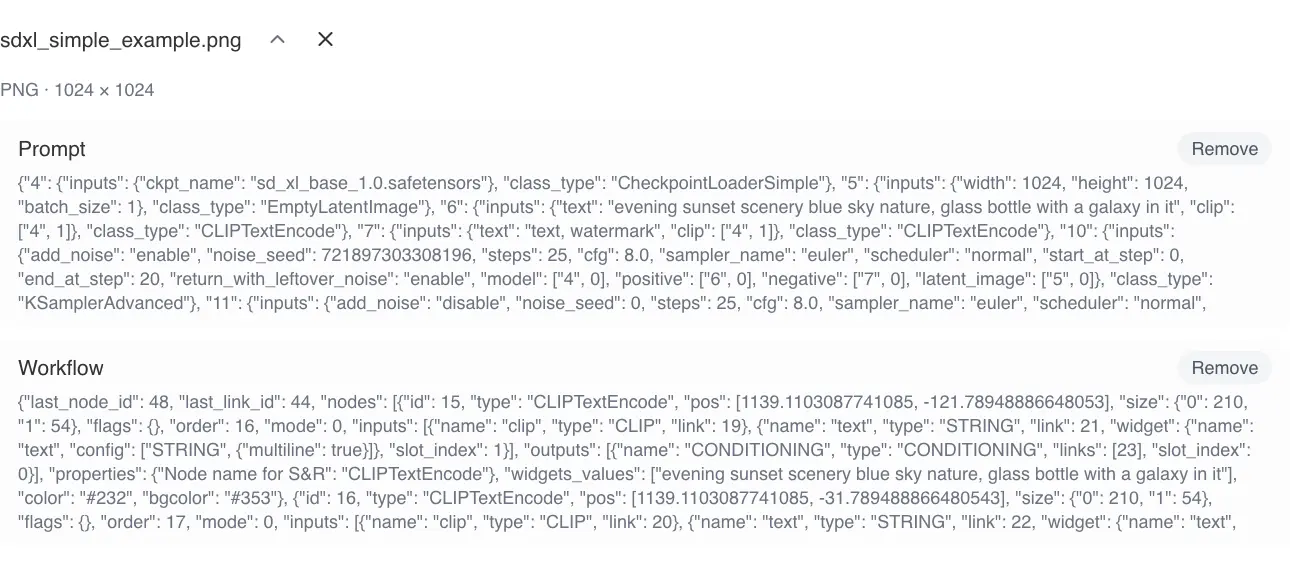
For this PNG, the relevant entries were Prompt and Workflow, both marked for removal. They are two different records, not two names for the same thing.
Prompt data is more than a sentence
In this ComfyUI example, the prompt record is structured generation data. It can include nodes, inputs, model references, and text used in the generation process. It is not simply a caption describing the finished image.
Do not assume that a field labeled Prompt proves who created the file or that every value in it is trustworthy. Metadata can be copied or edited. Here, the known upstream source and the actual file contents support a narrow statement: this sample contains ComfyUI generation records.
A workflow can reveal how the image was made
The workflow record describes the graph used in ComfyUI. If you share the original PNG, you may also be sharing a reusable description of that process. That can be helpful when you deliberately publish a workflow, but unnecessary when you only intend to deliver the finished picture.
Keep an untouched original if you may need the workflow later. Cleaning a delivery copy and retaining your working file serve different purposes.
How to remove AI metadata with Keep original
Once you have reviewed the fields, leave Keep original selected and choose Clean image. For this supported PNG, the tool removes the recognized removable records without re-encoding the image payload.
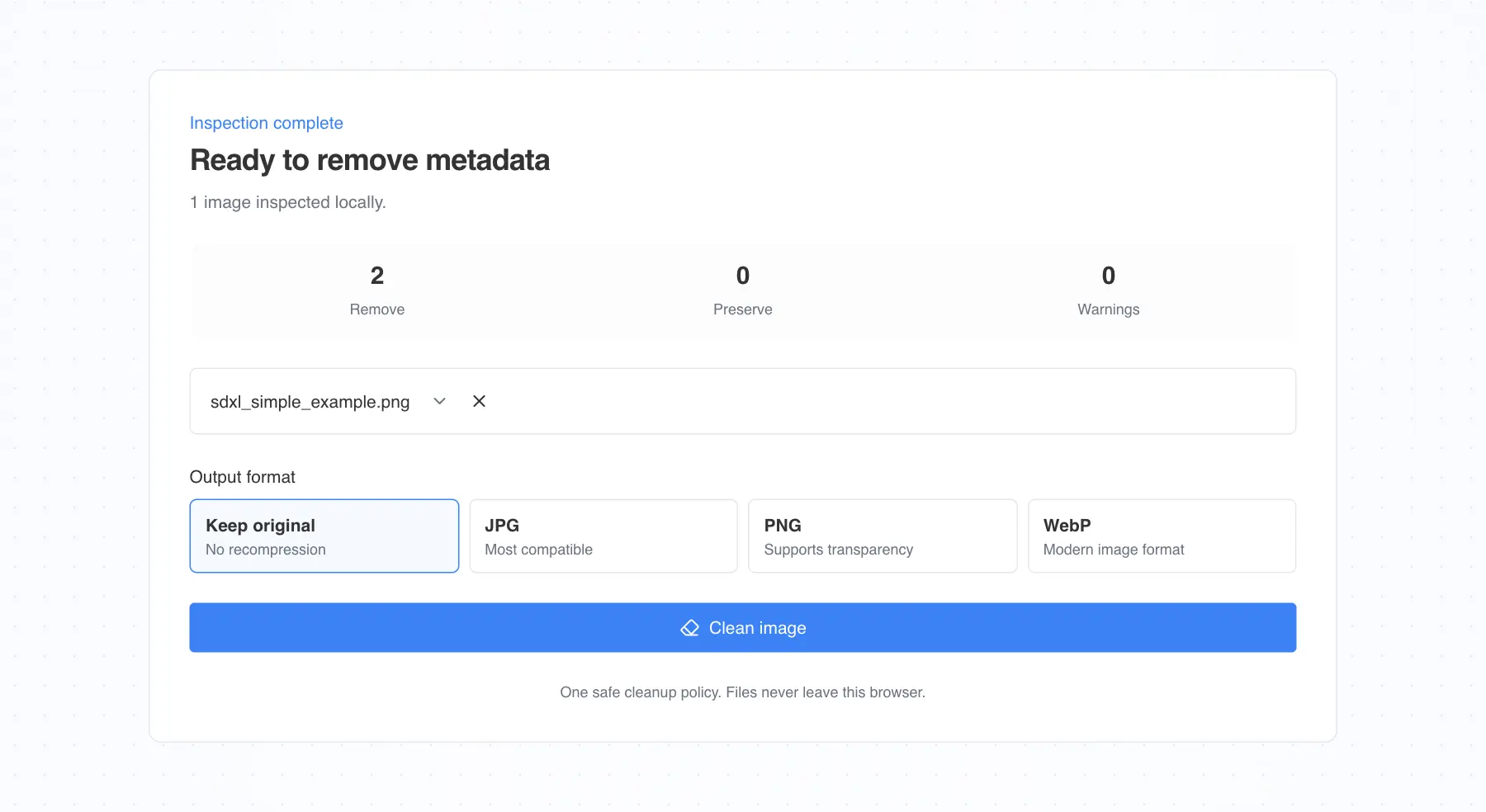
There is no separate “AI fields only” switch in our tool. Its cleanup policy can remove other recognized optional metadata as well, so review the inspection results before proceeding. If you need to retain specific fields, do not assume that choosing Keep original means every non-AI field will survive.
“Original” refers to the output format and the no-recompression path, not to preserving the original file byte for byte. Removing text chunks necessarily changes the file bytes.
This example does not test format conversion. Converting an image is a different operation: it creates a new encoded output and can affect properties such as transparency or animation. In particular, HEIC and HEIF inputs require conversion and cannot use Keep original. The image metadata remover page explains the broader input and output workflow.
Download the cleaned image
Wait for cleaning and verification to finish, then use Download to save the output. Do not send the untouched original by mistake.
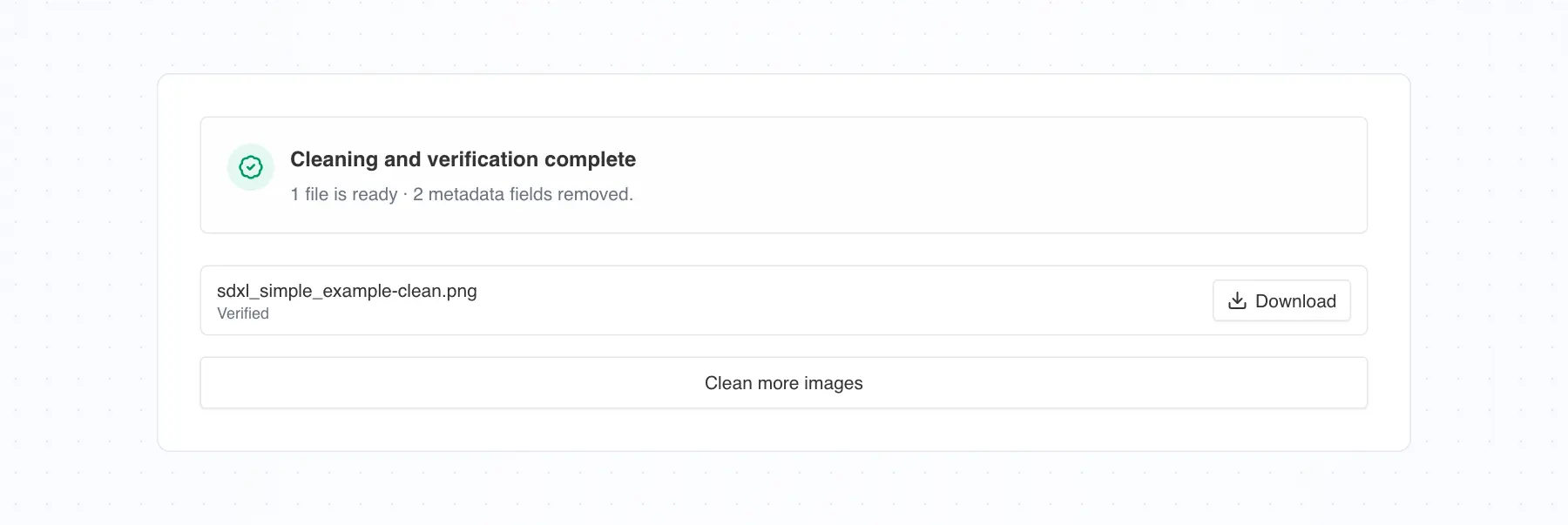
The built-in verification result is useful, but it has a defined scope. It reports the checks the tool performed on that output. It is not a certificate that the file contains no unknown information, that its creation history has vanished everywhere, or that a social network will remove a label.
Keep the downloaded copy separate until you have checked it. If you open it in another editor and export it again, that later export becomes a new file to review.
Check what changed in the downloaded file
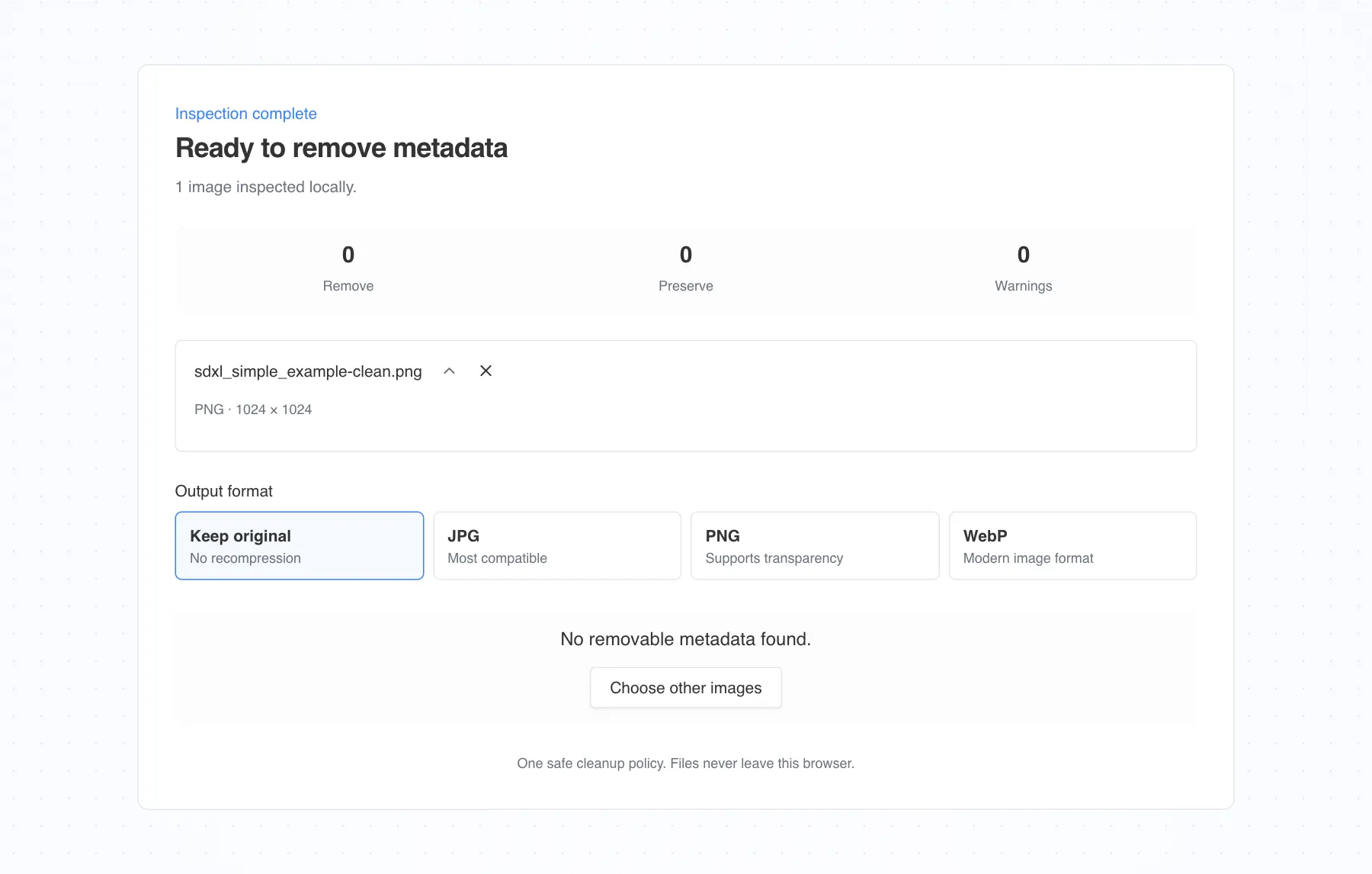
We reopened the downloaded PNG in a fresh inspection. The tool no longer found the Prompt and Workflow entries. Required image structure remained, which is expected: a valid PNG still needs information that allows software to decode its pixels.
| Field | Original PNG | Downloaded PNG |
|---|---|---|
| Prompt text record | Present | Not present after cleaning |
| Workflow text record | Present | Not present after cleaning |
| File size | 1,257,779 bytes | 1,239,940 bytes |
| Pixel dimensions | 1024 × 1024 | 1024 × 1024 |
| Decoded RGBA pixels | Reference pixels | Identical to the reference |
| Output format | PNG | PNG |
The download was 17,839 bytes smaller. The useful evidence is not the reduction alone: the two targeted text records were gone, and the decoded pixel arrays matched.
How we checked the pixels
We decoded the original and the actual browser download using Sharp/libvips, converted both to raw RGBA pixel data, and compared their dimensions and bytes. That comparison returned identical results. Earlier container-level checks also found that the two PNG text chunks were removed while the IDAT image data remained.
This was a programmatic comparison, not a visual judgment from side-by-side thumbnails. It applies to this file and mode. We did not test all PNGs, all color profiles, or how every viewing app renders the image.
You can review the machine-readable test summary, including the source URL, original and downloaded file hashes, field labels, and measured sizes. It contains no copy of the source image or its full prompt and workflow values.
How to check your own result
Repeat the inspection on the exact download you plan to send. Look for the fields you saw before cleaning, and read any warnings about unsupported or uncertain structures. If a second metadata reader finds something unexpected, compare the actual field or container instead of assuming one generic “clean” label settles the question.
Also review the filename and visible content. Removing embedded records does not hide a name printed in the image, a visible watermark, or a revealing project filename.
Ordinary photo editing history is not an AI prompt
As a contrast, we inspected adobe-20220124-A.jpg from the C2PA public test-file repository. Its documentation identifies it as a sample without Content Credentials. That does not mean it has no metadata: it still contains ordinary EXIF, XMP, IPTC, and color-profile information.
One XMP editing event includes the parameter saved to new location. Our tool displays it as Editing history parameters, not Prompt.

This distinction matters when learning how to remove metadata from an AI-generated image: not every record with words such as “parameters” or “model” belongs to an AI workflow. The surrounding metadata namespace and context matter.
The control is a public technical sample, not proof that every part of its creation history is known. We use it to demonstrate the meaning of a particular field, not to certify an image as human-made.
What AI metadata removal cannot tell you
Removing file metadata and removing evidence of AI generation are not interchangeable tasks.
Embedded Content Credentials are one layer. C2PA records may be embedded in an asset, but the standard also supports external manifests. Our C2PA remover explains the supported embedded structures and the limits of file-level cleanup. Deleting an embedded record does not delete a remote copy or platform history.
Watermarks can be another layer. A visible watermark belongs to the pixels. SynthID is also a different mechanism from the text records shown in this test. This tutorial does not remove or test either kind of watermark.
Platform labels are a separate outcome. An app or social network may use uploaded metadata, previous uploads, disclosures, or other signals. We did not upload the sample to social platforms, so this test cannot support a promise that cleaning it removes an AI label.
No recognized AI fields does not prove “not AI.” A screenshot, edited export, or stripped file can lack the original generation records. An AI-generated image may have no recognizable prompt data in the first place. Our guide to screenshot metadata explains why creating a new image and cleaning the original are different operations.
Frequently asked questions
Can I remove AI metadata from photos for free?
Yes. You can use our free browser tool to inspect and clean supported image files without an account. The important part is checking the result, not simply choosing a tool described as free. Review what was found, download the output, and inspect that copy again.
How do I remove AI metadata from an image without losing quality?
Use Keep original for a supported file when you do not need conversion. In our ComfyUI PNG test, removing the Prompt and Workflow records left the decoded pixels identical. That is a measured result for this sample, not a guarantee for every format, file, or export workflow.
Does every AI-generated image contain a prompt?
No. The presence of prompt data depends on the generator, save settings, format, and subsequent processing. This ComfyUI example contains a structured prompt and workflow, but another image may carry different metadata or none that the tool recognizes. You cannot reliably recover an absent prompt from metadata inspection.
Will cleaning remove EXIF as well?
It can. Our tool uses a single cleanup policy for recognized removable fields; it is not an AI-only filter. Keep original avoids recompression where supported, but it does not mean “keep all EXIF.” Inspect the field list and retain an untouched original if those records matter to you.
Can I remove AI metadata from a photo edited in Photoshop?
You can inspect the exported file and clean supported embedded records it contains. Do not assume that an ordinary edit-history entry is an AI prompt, or that cleaning a file will change Instagram's or another platform's label. The PNG walkthrough here is not a Photoshop export or social-platform test.
Is taking a screenshot a better option?
Not if your objective is to preserve the existing file's image payload. A screenshot creates a new image of rendered pixels and may change resolution, framing, or color. It can also contain its own metadata. Inspecting and cleaning the delivery file gives you a more direct way to review its embedded records.
Should I always remove the workflow?
No. Keep it when you want others to reproduce the process, or when it is needed for your own editing and documentation. If a client only needs the finished image, you can retain the original privately and prepare a separate cleaned delivery copy. Follow any attribution or disclosure requirements that apply to your work.
Sources and test notes
The main walkthrough uses our local browser interface and an actual downloaded output. Only Keep original was tested here. The field and pixel results are specific to the referenced files; no conversion, social-platform, AI-detector, or watermark-removal test is implied.
- ComfyUI SDXL examples and source workflow. The repository's workflow license permits workflow reuse; the source image pixels are not republished in this article.
- C2PA public test-file documentation. The ordinary-metadata field excerpt comes from Adobe's A sample in this repository, licensed under CC BY-SA 4.0. It is shown as a cropped field display, without source-image pixels; that excerpt is available under the same license.
- C2PA technical specification, for the distinction between embedded and external provenance structures.
- Google DeepMind's SynthID overview, for the separate concept of watermarking AI-generated content.
Ready to inspect your own file? Open the local AI metadata cleaner, keep an original copy, and verify the downloaded result before sharing.
Related articles

AI Metadata & Content Credentials
ComfyUI Image Metadata: How to Read Prompts and Workflows
Read three real ComfyUI example files to understand prompt and workflow JSON, follow generation settings, and see what survives a PNG export.
AI Metadata & Content Credentials
Do ChatGPT-Generated Images Have Metadata? What the File Can Reveal
See the source, action, and time fields inside a real GPT-generated image, and understand what they do not tell a recipient about your prompt or identity.

Privacy & Sharing
How to Remove Metadata in Photoshop: Export Settings Compared
Learn which Photoshop export settings remove camera and software metadata, with measured JPEG results for Export As, Save for Web and Save As.