
Privacy & Sharing
How to Remove Metadata in Photoshop: Export Settings Compared
Learn which Photoshop export settings remove camera and software metadata, with measured JPEG results for Export As, Save for Web and Save As.

To remove metadata from an image in Photoshop, use Export As or Save for Web with Metadata set to None, save a separate copy, and inspect that exported file. Save As did not remove the camera or capture date in our test. Both export paths removed those values, although Save for Web left an empty EXIF structure and some technical segments.
We compared three JPEG saving paths in Photoshop 2021, version 22.0.0, on Mac, on September 14, 2026. The instructions use English menu names, with illustrated settings guides rather than desktop screenshots. These measurements cover one JPEG and one Photoshop version, so check your own output before sharing.
Remove metadata with Export As
Start here when you want a separate sharing copy with the metadata option explicitly disabled.
- Open the image in Photoshop and keep the original file.
- Choose File → Export → Export As.
- Select JPG for a JPEG output. Check the width and height so you do not resize unintentionally.
- In the Metadata section, select None.
- Choose the image quality and color settings you need. Treat Embed Color Profile as a separate choice from removing camera or author information.
- Export under a new filename, then inspect that file for the fields you intended to remove.
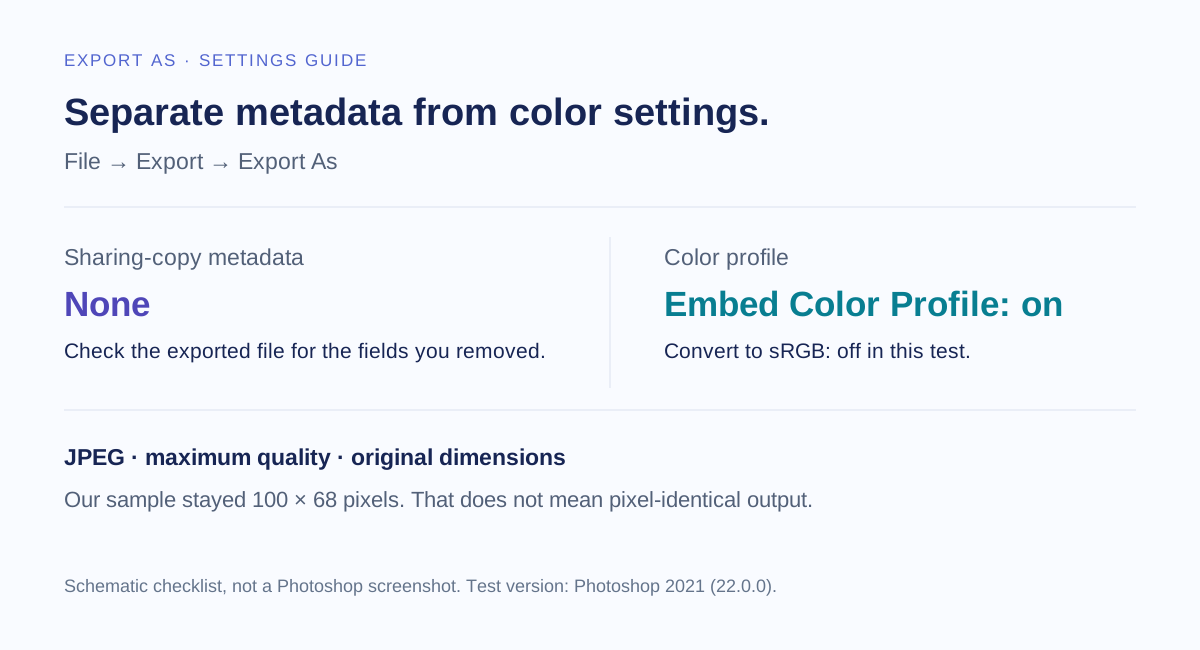
Our Export As output contained no EXIF, XMP or Photoshop APP13 segment. The camera model, capture timestamp and original software value were absent. An ICC color profile and Adobe APP14 segment remained.
The requested settings were JPEG quality 100, Metadata None, Embed Color Profile on and Convert to sRGB off. Because the final settings screenshot is unavailable, we report those as requested settings. The saved file independently confirms that the original ICC profile was retained; it cannot establish every dialog selection.
You can check the downloaded copy with the image metadata inspector. Inspect the exported file itself, since the document still open in Photoshop is a different object.
Strip metadata with Save for Web
Save for Web (Legacy) provides another explicit metadata choice. Here is how to strip metadata with Photoshop using that path:
- Choose File → Export → Save for Web (Legacy).
- Select JPEG and set your desired quality.
- Find the Metadata dropdown and choose None.
- Confirm the image dimensions and the color-profile options.
- Click Save, use a different filename, and inspect the resulting JPEG.
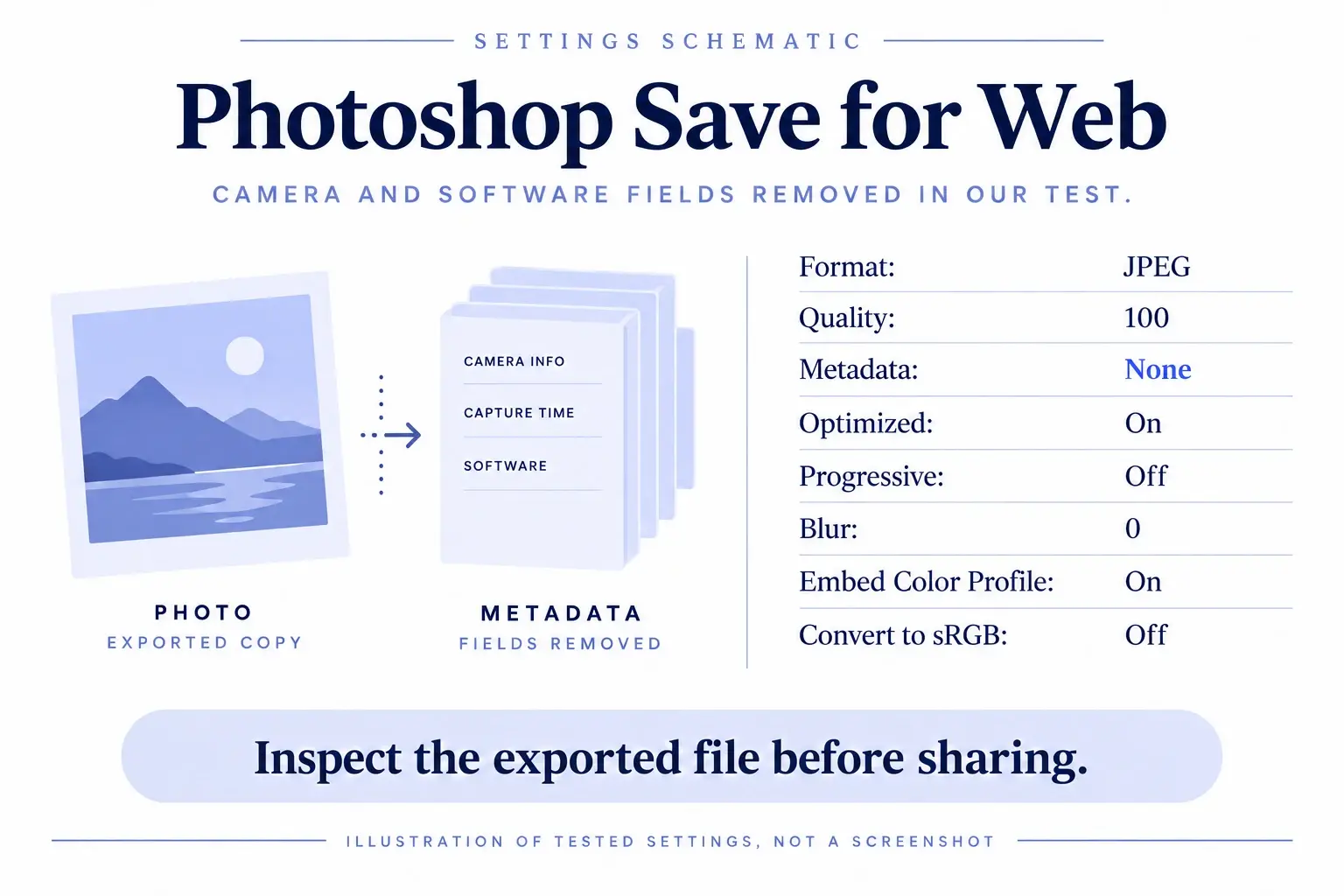
In this test, Save for Web removed the original camera, capture time and software values. However, a binary inspection still found an EXIF segment containing an empty directory. That is why a reader can report “EXIF present” even after the meaningful EXIF entries have gone.
The output also retained an ICC profile, Adobe APP14, APP12 Ducky and a small Photoshop APP13 resource. These findings do not establish that private camera or author information survived. The comparison below separates actual values from remaining containers.
Why Save As gives a different result
Saving a JPEG through File → Save As was not a metadata-cleaning step in our comparison. We used quality 12, Baseline Standard, and embedded the ICC profile.
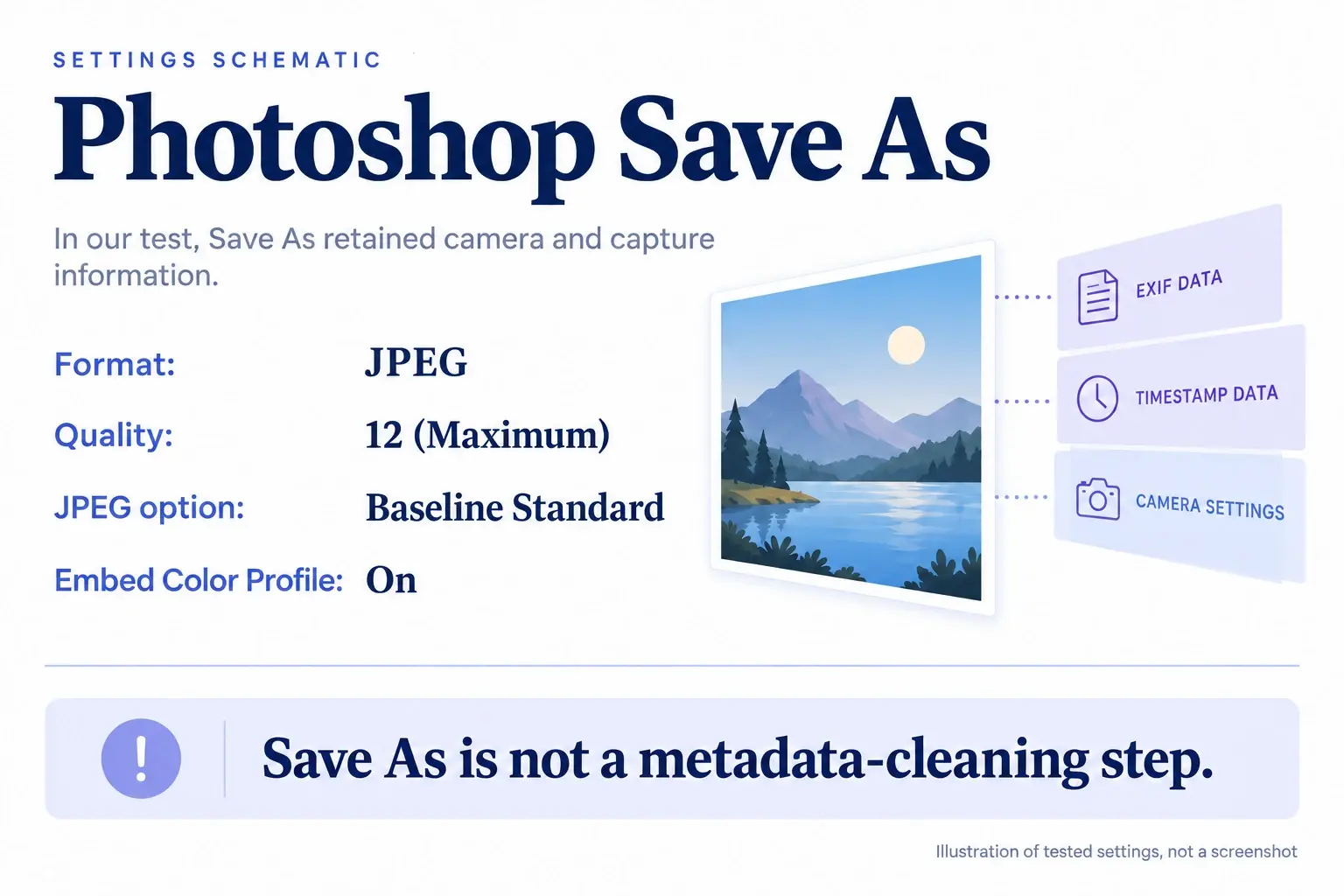
The saved copy retained Canon EOS 40D and the capture timestamp 2008:05:30 15:56:01. Its EXIF Software value changed from GIMP 2.4.5 to Adobe Photoshop 22.0 (Macintosh), while its XMP CreatorTool still named GIMP.
Those two software fields illustrate why checking a single entry is insufficient. One record can change while another preserves an older value. If your aim is to remove metadata from an image, Photoshop's Save As output needs the same inspection as any other file; a new filename does not show that its embedded records were cleared.
Measured comparison: what each JPEG retained
Every file measured 100 × 68 pixels. The source was 7,958 bytes and included camera information, a capture timestamp, a software value and an ICC profile.
| Field | Camera, capture time and software | Other measured findings |
|---|---|---|
| Original — 7,958 bytes | Canon EOS 40D; 2008:05:30 15:56:01; GIMP 2.4.5. | ICC profile present. |
| Save As — 21,366 bytes | Camera and capture time retained; EXIF Software changed to Photoshop; XMP CreatorTool remained GIMP. | ICC retained; decoded pixels differed from source. |
| Export As None — 7,947 bytes | Original values absent; no EXIF or XMP segment. | No APP13; ICC and Adobe APP14 retained; decoded pixels differed. |
| Save for Web None — 7,856 bytes | Original values absent; empty EXIF directory remained. | APP12 Ducky, small APP13 resource, ICC and APP14 remained; decoded pixels differed. |
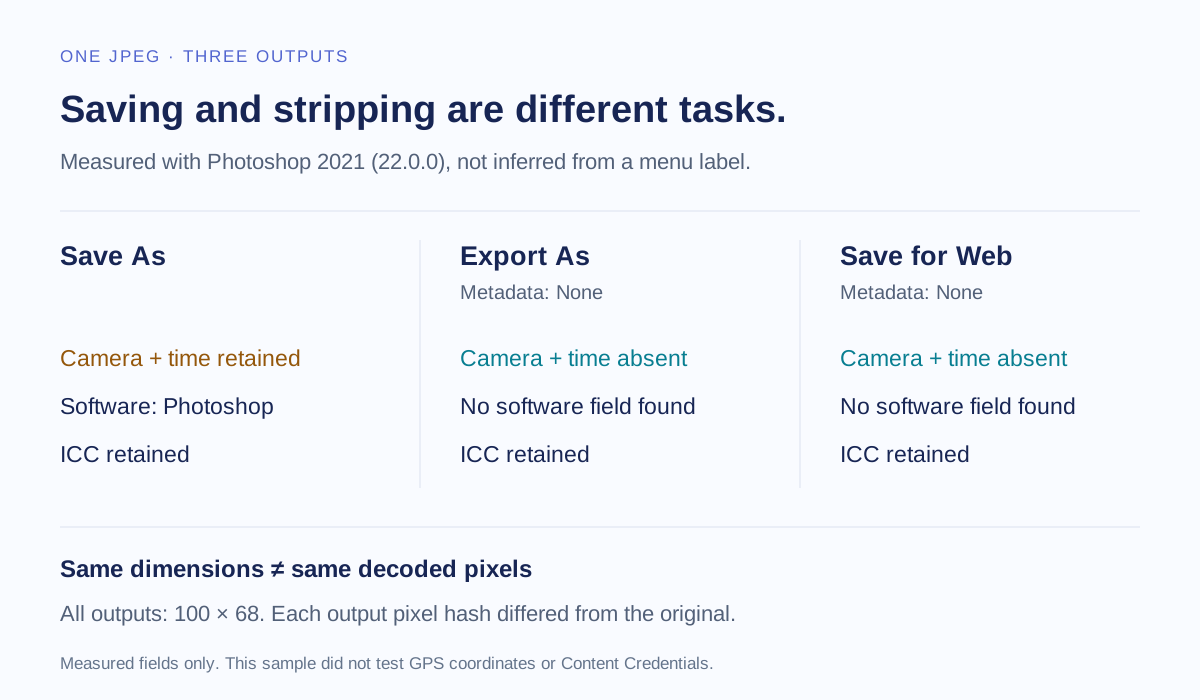
The ICC profile had the same hash in all four files. However, all three Photoshop outputs had decoded pixels that differed from the source. Matching dimensions and a retained profile do not demonstrate lossless saving, and these results do not support a no-recompression claim. File size alone also cannot measure visual quality.
Why Metadata None can leave technical structures
Metadata readers sometimes summarize a container instead of showing its individual records. Our Save for Web JPEG had an EXIF IFD with zero entries. Its APP13 segment contained resource 0x0425, whose payload was 16 zero bytes.
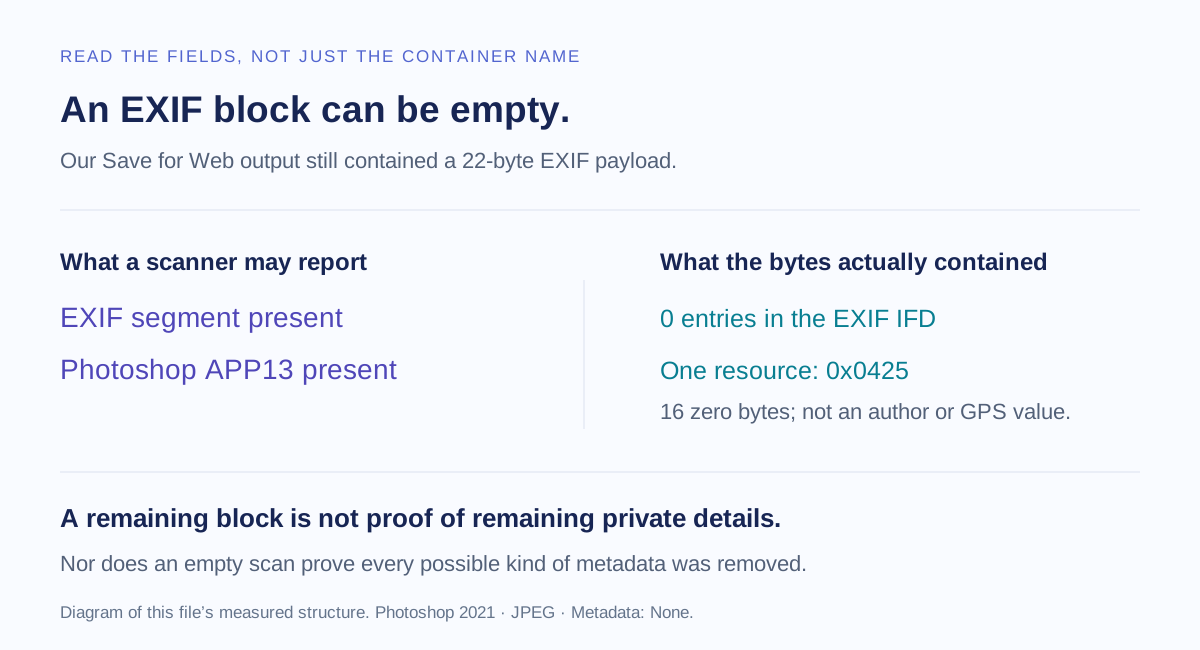
Our project's reader labels APP13 broadly as “IPTC.” We checked the binary resource before interpreting that label: this finding is not evidence of retained personal IPTC fields. Similarly, the ICC profile serves color interpretation and should not be confused with the removed camera values.
When a scan still flags metadata, expand the entries and ask what values actually remain. The browser-based checker can help review supported fields, but an unfamiliar container may need a format-aware inspection.
Frequently asked questions
How do I view metadata in Photoshop?
Open File → File Info to review the categories Photoshop exposes. Adobe describes this interface in its metadata documentation. Inspect the saved output separately when verifying an export.
Can I remove the Photoshop software name?
Both Metadata None exports started from the original GIMP-tagged file: they removed its software values and did not add a Photoshop software entry. We did not re-export the Save As copy, so this test does not directly establish removal of an existing Photoshop name. Check both EXIF Software and XMP CreatorTool in your output.
Does Photoshop remove all metadata with None?
Not literally every technical structure in our test. Export As kept ICC and APP14; Save for Web also left empty EXIF and additional segments. Both removed the original camera, capture and software values, which is a more precise result.
Does removing metadata affect image quality or ICC color?
All three saved JPEGs had changed decoded pixels, even at the high quality settings used here. All retained the identical ICC profile. Choose color settings for your intended use, and do not assume that Metadata None makes a JPEG export lossless.
Will this remove GPS coordinates or C2PA Content Credentials?
This sample contained a GPS version entry but no GPS coordinates, and it had no C2PA Content Credentials. It also had no source XMP editing history. These exports therefore do not test removal of those records. Inspect a file that actually contains the information before drawing that conclusion.
Test method and sources
We downloaded Canon_40D.jpg unchanged from ianare/exif-samples, whose contributor image terms specify CC BY-SA 4.0. We compared the original with the three user-produced Photoshop exports using the project's metadata reader, an independent binary JPEG marker scan, and Sharp for dimensions and decoded-pixel hashes. We did not use ExifTool.
The machine-readable evidence records sizes, hashes and container findings. The cover is a conceptual illustration, not the test sample. Adobe's Save for Web documentation provides a reference for that export feature; the results above describe our older tested version, not a guarantee about the latest release.
Related articles
AI Metadata & Content Credentials
How to Remove AI Metadata from Photos: A Tested Guide
Follow a real ComfyUI image from its original prompt and workflow data to a cleaned download, then check exactly what changed.

Privacy & Sharing
Do Screenshots Have Metadata? What They Keep, Drop, and Reveal
Screenshots can contain metadata, but usually not the original photo's EXIF or GPS. Learn what survives, what changes, and what to check before sharing.
Privacy & Sharing
Does Discord Remove Metadata from Photos? We Tested JPG, PNG and WebP
Our file tests show why Discord attachments and saved previews can retain different metadata, including EXIF and ComfyUI workflows.