
AI Metadata & Content Credentials
ComfyUI Image Metadata: How to Read Prompts and Workflows
Read three real ComfyUI example files to understand prompt and workflow JSON, follow generation settings, and see what survives a PNG export.

To read ComfyUI image metadata, inspect its Prompt and Workflow records. Reading generation settings is different from restoring a ComfyUI canvas: Prompt contains execution settings, while Workflow describes the canvas graph. To find the actual text prompt, follow the relevant nodes and inputs rather than treating the entire JSON object as one sentence you can paste into a generator.
We inspected three files from the official ComfyUI examples repository on September 8, 2026: a two-stage PNG, a FLUX Schnell PNG, and a FLUX Kontext WebP. We also re-exported the two PNGs to test whether their records survived. We did not run these workflows, install their nodes, or generate their images.
The figures show actual inspection fields or diagrams derived from the embedded data. The cover is a conceptual illustration. Source images remain at their upstream links; their pixels are not reproduced here.
How to inspect ComfyUI image metadata
Use the original downloaded file when possible. A screenshot or an edited export may look similar while carrying different records.
- Open the browser-based metadata inspector and choose your image. File inspection happens locally; image contents are not uploaded to our server.
- Expand the filename to see the detected fields. Scroll through the field list to find Prompt and Workflow and read their values.
- Copy the JSON text you want to examine into a local text editor. Search within that copy to follow node IDs and inputs.
You do not need to choose Clean image to inspect a file. In this walkthrough, we only read the original files. Keep the JSON local if it contains private prompts or project details.
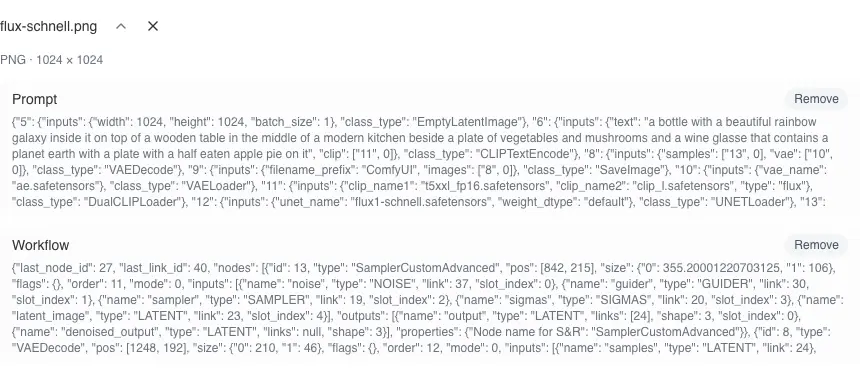
Use the detected fields to choose your next step:
- Both Prompt and Workflow: Read the execution settings and inspect the graph. Running an imported canvas still depends on compatible models, input assets, and custom nodes.
- Prompt only: You can examine recorded settings, but no Workflow field was detected in this copy. Look for the original download or saved workflow JSON before trying to restore a canvas.
- Workflow only: Inspect the graph and its node inputs. A missing Prompt field does not mean the workflow is missing, and the graph alone does not guarantee the same output.
- Neither field recognized: Check an original copy and a reader that supports its format. An empty result does not by itself prove the records are absent; use the missing-metadata checks below.
If your goal is to recover a canvas, ComfyUI's workflow metadata documentation describes dragging a generated file onto the canvas or using File > Open. That is a documented ComfyUI operation, not a step we tested here. Inspecting a local JSON copy lets you review its contents first.
Prompt vs. workflow: what each field contains
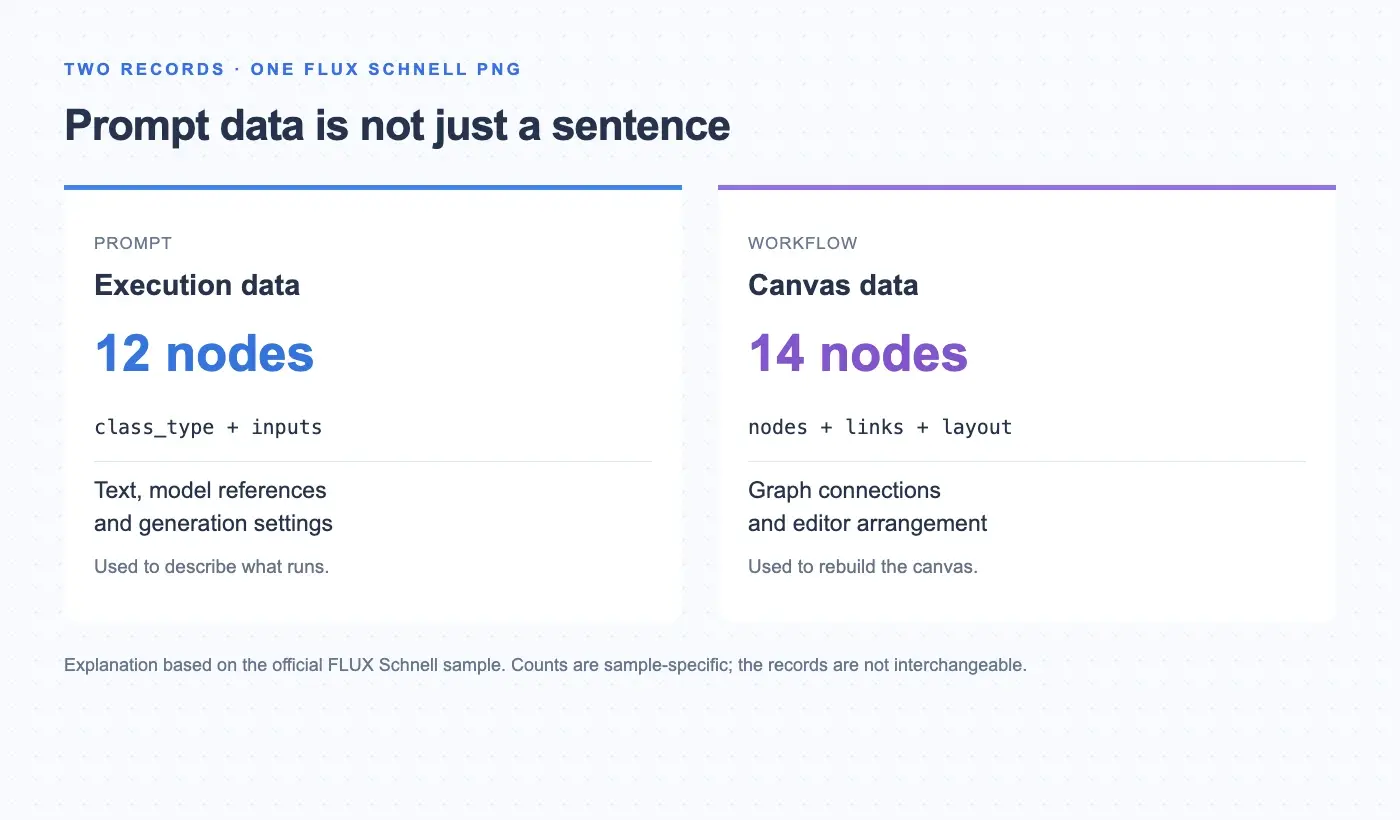
The two records answer different questions. In our samples, prompt maps node IDs to their classes and inputs. This makes it useful for tracing which setting belongs to which operation. workflow also describes the canvas, including its nodes, connections, and layout.
| Field | Prompt record | Workflow record |
|---|---|---|
| Two-stage PNG | 15 execution nodes | 15 canvas nodes |
| FLUX Schnell PNG | 12 execution nodes | 14 canvas nodes |
| FLUX Kontext WebP | 58 execution nodes | 59 canvas nodes |
Those counts are a useful warning against treating the records as interchangeable. In the Schnell file, for example, there are fourteen canvas nodes but twelve execution entries. A reader that expects identical lists would mistake a real difference in representation for missing data.
Read a node's class_type before interpreting its inputs. A model reference, text encoder, scheduler, and image saver each use settings differently. Likewise, an input that points to another node is a connection to follow; it is not itself the final text or numeric setting.
The official documentation describes prompt as the execution representation and workflow as the graph used to restore the frontend. It also notes that a file can carry one without the other. Finding readable prompt JSON therefore does not establish that a complete canvas record is present.
Why ComfyUI metadata may be missing
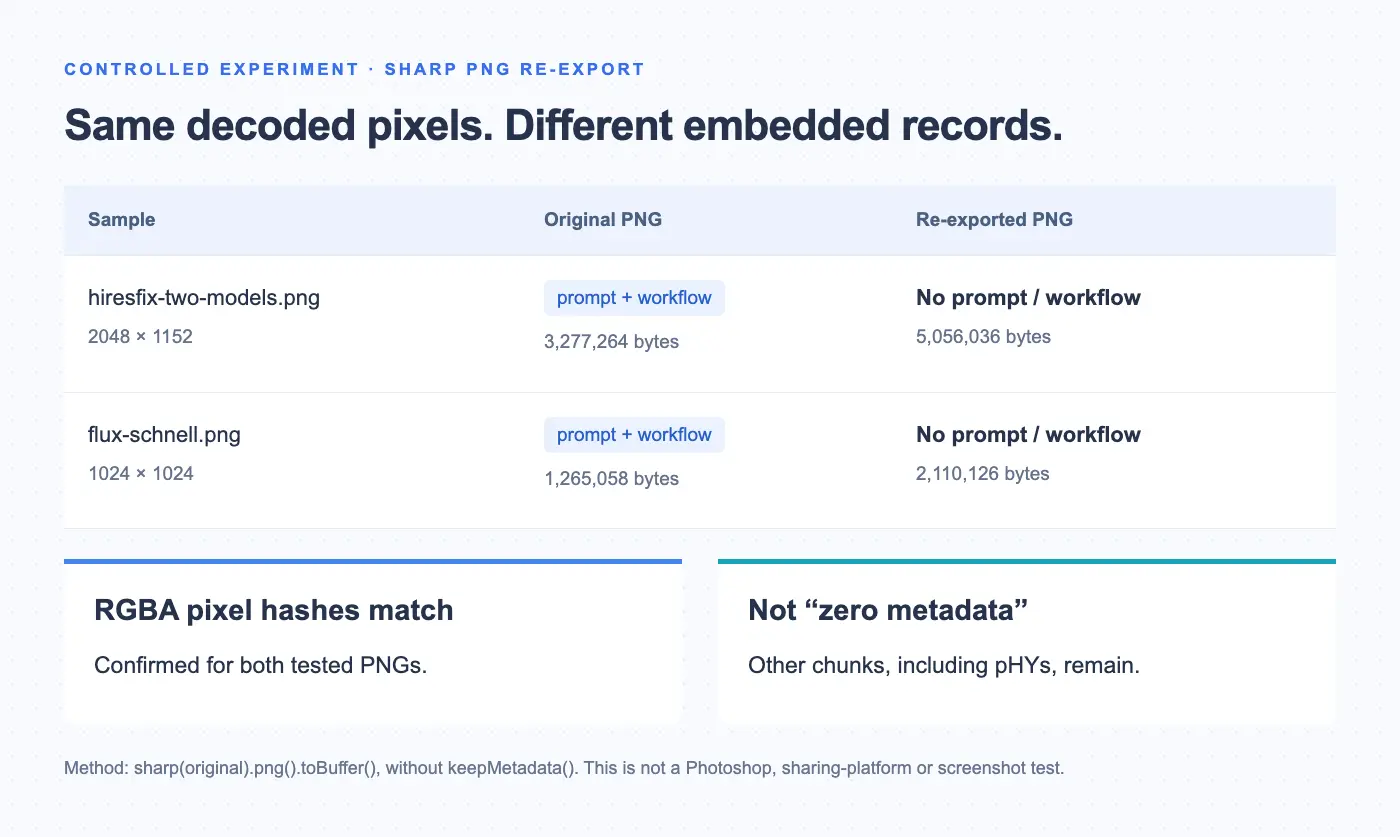
An image can retain its pixels while losing the records that explain its generation. We tested that directly by re-exporting both original PNGs with Sharp using sharp(bytes).png().toBuffer(), without requesting metadata preservation.
The resulting PNGs no longer contained prompt or workflow. Their decoded RGBA pixel arrays matched their respective originals, yet their file sizes increased.
| Field | Original | Sharp PNG export |
|---|---|---|
| Two-stage PNG | 3,277,264 bytes | 5,056,036 bytes |
| FLUX Schnell PNG | 1,265,058 bytes | 2,110,126 bytes |
| Prompt and Workflow | Both present | Both absent |
| Decoded RGBA pixels | Reference | Identical to each reference |
The exports also gained a pHYs chunk, which carries pixel density or aspect-ratio information. We are not claiming that all metadata disappeared. Nor does identical decoded RGBA data prove that every application will render every file identically. Here it shows why appearance and file size are insufficient tests for whether prompt records survived.
Other possible causes include disabled metadata saving or a save path that never received workflow information, as described in the official documentation. Check the original download, a retained project file, and any later export separately. A missing record in one copy does not tell you at which step it was lost.
The machine-readable evidence summary records source URLs, hashes, field findings, and export comparisons. It contains no source-image pixels. These tests concern the three linked files and the two specified PNG exports.
Find the text prompt, seed, and steps
For PNG info in ComfyUI, searching only for a familiar sampler name can lead you past the settings you need. The FLUX Schnell sample distributes settings across several nodes.
Start with node 6, whose class is CLIPTextEncode: its inputs.text contains text supplied to the encoder. Then inspect node 17, a BasicScheduler, where steps is 4. The random seed is under noise_seed in RandomNoise node 25. Sampler selection is in KSamplerSelect node 16.
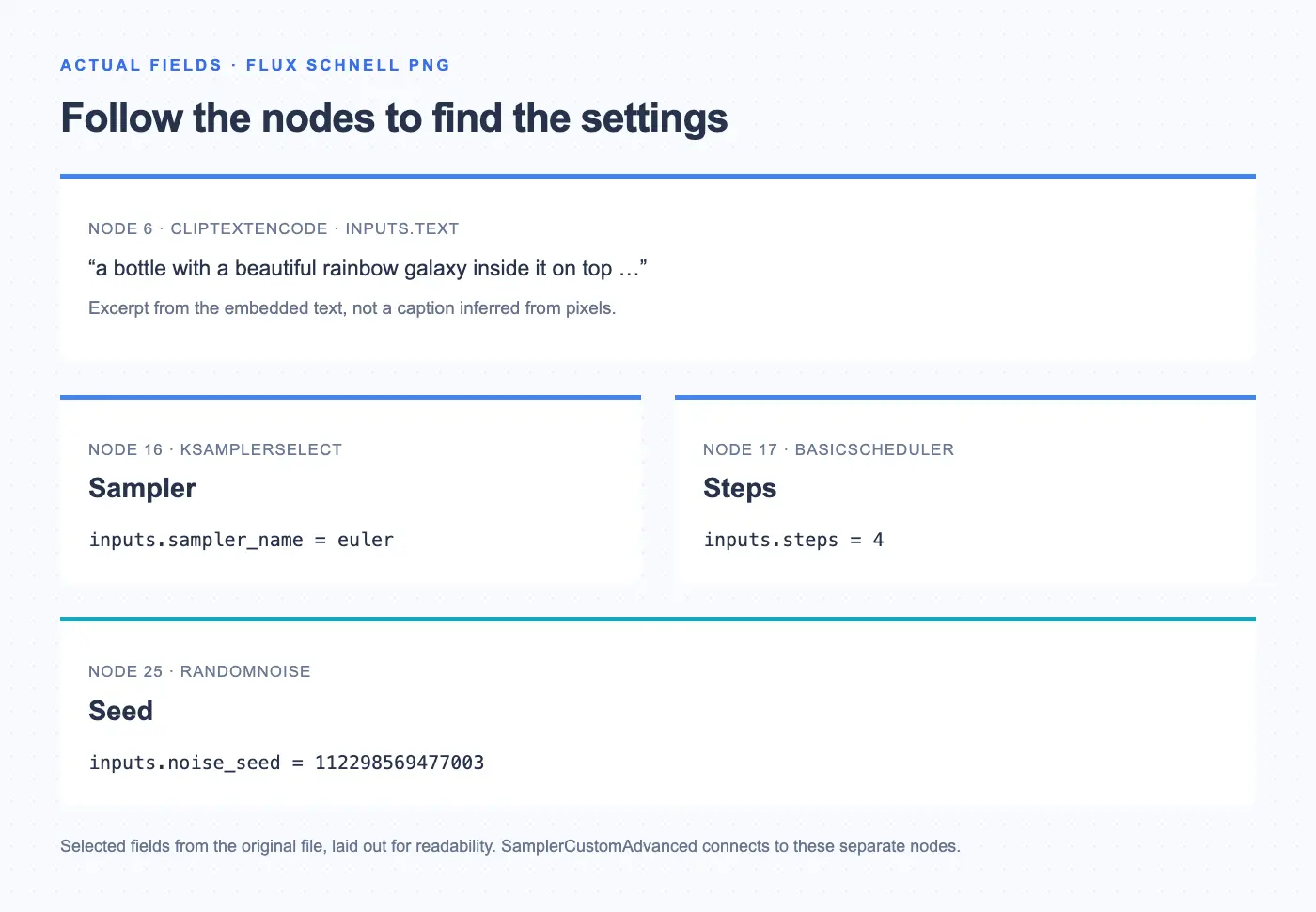
This graph uses SamplerCustomAdvanced; its text, noise, scheduler, and sampler choices are not all stored together in one conventional KSampler entry. Searching for seed alone may also miss the more specific key noise_seed.
Follow connections from the operation you care about, then record each value with its node ID and class. A note such as “steps: 4, BasicScheduler node 17” preserves more context than an isolated number. Keep the original JSON alongside your notes so you can revisit a connection that was easy to overlook.
The practical method is to identify the node, read its input names, and trace references. There is no single field path that describes every ComfyUI graph.
Why one image can contain multiple prompts
The two-stage example PNG contains two KSampler entries with different model and conditioning connections.
Node 3 points to model node 4, which names wd-illusion-fp16.safetensors. Its positive and negative inputs reference nodes 6 and 7; it records 14 steps and seed 758448896326830.
Node 32 points to model node 13, which names cardosAnime_v10.safetensors. Its positive and negative references are nodes 15 and 14; it records 8 steps and seed 417682270866800.
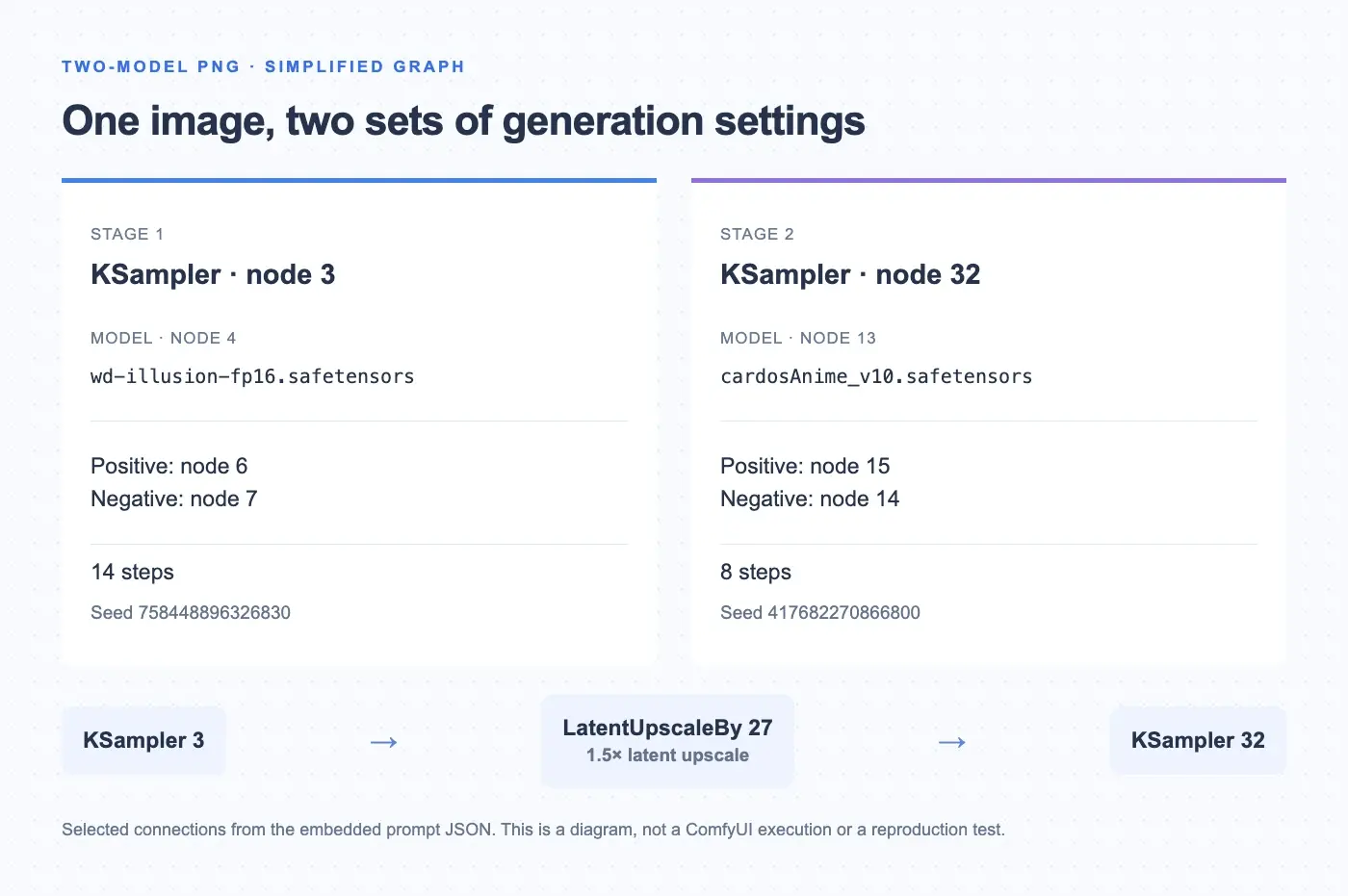
Calling either text input “the prompt” loses information about the other stage. Positive and negative conditioning also have different roles; they should not be combined into a single undifferentiated text block.
When documenting this kind of file, group settings by sampler and follow each sampler's model and conditioning links. That preserves the distinction between stages. The embedded graph supports this account of its structure, but inspecting it does not verify how successfully it would run in a new environment.
Can WebP files contain ComfyUI metadata?
Yes. Our FLUX Kontext WebP sample contains both records. ComfyUI WebP metadata in this file is stored differently from the text chunks in the two PNGs.
In the WebP EXIF block, IFD0 tag 0x010f holds a string beginning workflow:, followed by JSON. Tag 0x0110 holds prompt: and its JSON. These tag numbers ordinarily have the EXIF names Make and Model, but the values here are workflow records, not camera information. Our inspector displays their recognized contents as Workflow and Prompt.
If you copy one of these WebP values into a JSON parser, remove the leading workflow: or prompt: label first. The JSON object starts at the opening {; the prefix is not part of it.
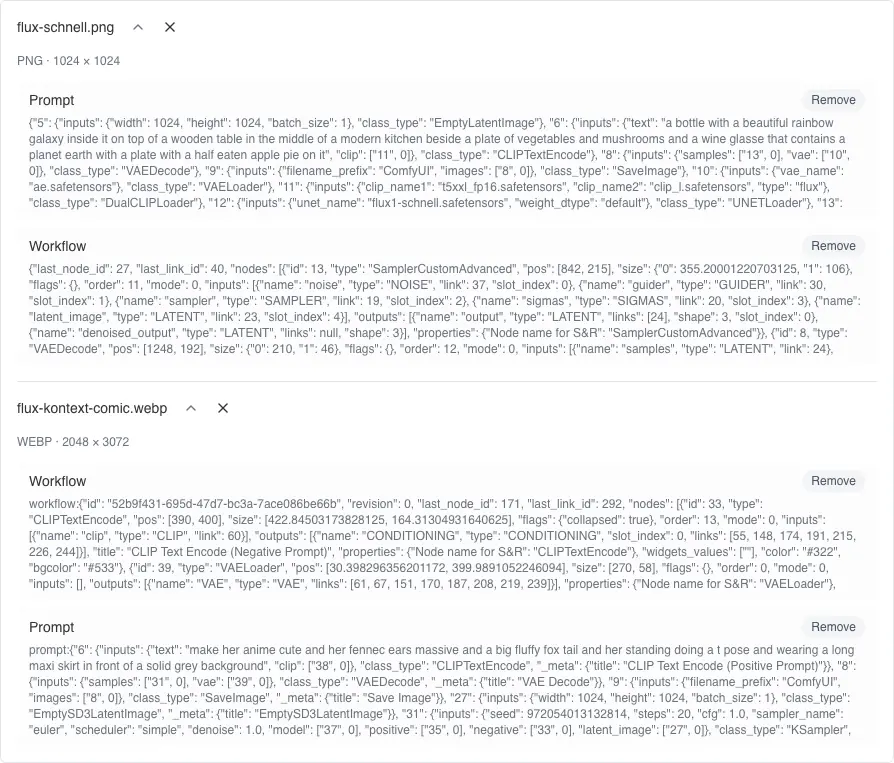
This particular WebP is static: its container has neither an ANIM nor an ANMF chunk. A save-node name in its graph is not sufficient evidence that the saved file is animated.
A reader that checks only PNG text chunks would miss these WebP records. When comparing metadata tools, check which container and fields they read before concluding that one file has no workflow. This sample establishes that a WebP can carry ComfyUI records; it does not establish that every WebP export retains them.
Keep the workflow or clean a sharing copy?
Keep an untouched original when you want to revisit settings or share a reusable workflow. If you only intend to deliver the finished picture, review whether its embedded text and model references belong in that delivery.
Make a separate sharing copy if you decide to remove them. Our tested guide to removing AI metadata from photos covers cleaning, downloading, and checking that copy. Preserve your original image and any project JSON before doing so.
Inspection helps you make that choice. The presence of a workflow can be useful documentation; it is not by itself a reason to delete it.
Frequently asked questions
Does every ComfyUI image contain metadata?
No. Our three original examples contain both records, while our two PNG re-exports do not. Saving options and later processing affect what remains. Inspect the actual file you have instead of inferring its contents from the filename or appearance.
Can I inspect metadata without replacing my current workflow?
Yes. Read the image with a metadata inspector and examine a local copy of its JSON. Our browser inspection did not load a ComfyUI canvas. Importing a graph is a separate action; save your current project before trying one.
Can I recover a prompt if the metadata is gone?
A metadata reader cannot retrieve an absent record from that file. Look for the original download, saved workflow JSON, or another retained copy. A description guessed from visible pixels does not recover the original prompt, seed, or graph.
Why can I read the prompt but not load the workflow?
Check whether a separate workflow record exists and is valid JSON. Readable execution settings do not establish that the canvas data is present. We inspected these records but did not test importing them into ComfyUI.
Does an embedded workflow guarantee the same image?
No. ComfyUI notes that model files, input assets, and custom-node packages are not included in the metadata. We did not rerun these examples, so our field checks cannot establish reproducibility or an identical output.
Can metadata prove who created an image?
No. Ordinary prompt and workflow records are editable and are not identity verification. Our evidence supports statements about the linked files' contents, not authorship. Absence of those records also does not prove that an image was created without AI.
Related articles
AI Metadata & Content Credentials
How to Remove AI Metadata from Photos: A Tested Guide
Follow a real ComfyUI image from its original prompt and workflow data to a cleaned download, then check exactly what changed.

Privacy & Sharing
Does Discord Remove Metadata from Photos? We Tested JPG, PNG and WebP
Our file tests show why Discord attachments and saved previews can retain different metadata, including EXIF and ComfyUI workflows.