
Privacy & Sharing
Do Screenshots Have Metadata? What They Keep, Drop, and Reveal
Screenshots can contain metadata, but usually not the original photo's EXIF or GPS. Learn what survives, what changes, and what to check before sharing.

The short answer is yes, screenshots can have metadata. However, a screenshot is normally a newly created image of the pixels displayed on your screen. It does not usually copy the source photo's camera model, lens settings, exposure details, or GPS coordinates into the new file.
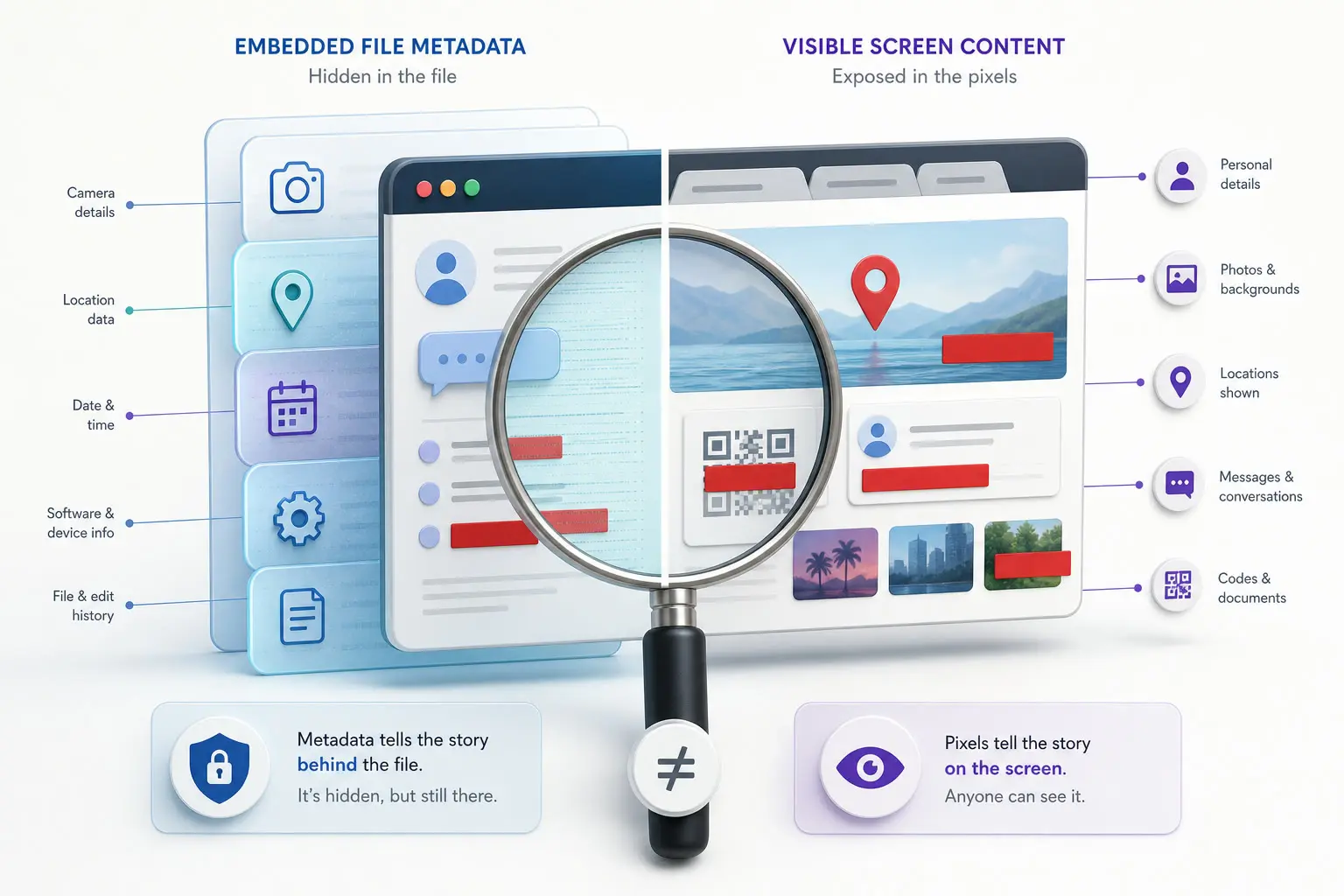
That distinction matters. “No original EXIF” is not the same as “no metadata,” and neither statement means a screenshot is automatically private. A screenshot may still contain dimensions, a color profile, software-related fields, creation information added by an app, or a revealing filename. The pixels themselves can expose far more than the embedded fields: account names, browser tabs, notifications, map locations, faces, order numbers, and private messages.
This guide separates those layers, explains what commonly happens on iPhone, Android, Windows, and macOS, and gives you a repeatable way to inspect the exact screenshot you plan to share.
Do screenshots have metadata?
Yes. A screenshot is an image file, and image formats can carry information in addition to the visible pixels. A PNG can contain textual chunks and color information. A JPEG can contain EXIF, XMP, ICC profiles, comments, and application-specific segments. Apps that save, edit, export, or upload a screenshot may also rewrite the file.
What a screenshot usually does not contain is inherited capture data from a photo displayed on the screen. When you photograph a street with a phone camera, the camera can record the device model, time, focal length, orientation, and location. When you display that photo and take a screenshot, the operating system generally renders a new image from what is visible. It is not making a byte-for-byte copy of the original photo.
The safest wording is therefore:
A fresh screenshot usually drops the source image's camera EXIF and GPS, but the resulting screenshot can still contain its own embedded metadata, file properties, filename clues, and sensitive visible content.
Embedded metadata
EXIF, XMP, PNG text chunks, color profiles and other data stored inside the image file.
Filesystem properties
Created and modified dates shown by Finder or Windows, which can change when a file is copied.
Filename
A name may expose a date, project, account or device even when embedded fields are empty.
Visible pixels
Maps, alerts, tabs, names, faces and addresses remain visible after metadata is removed.
This four-layer model prevents a common mistake: opening a file-properties panel, seeing no camera information, and assuming there is nothing left to review. Embedded metadata is only one part of the privacy check.
Does taking a screenshot remove metadata?
Taking a screenshot normally breaks the direct metadata connection to the source image because it creates a new raster image from rendered screen pixels. If the source was a camera photo with GPSLatitude, GPSLongitude, camera make, and exposure settings, those specific fields are generally not transferred into the screenshot.
But “remove” can be misleading. The screenshot process is not a universal metadata-cleaning standard. It is a capture workflow controlled by the operating system, screenshot utility, editing app, and save path. A standard keyboard shortcut may produce one file; a scrolling-capture tool, browser extension, annotation app, or cloud service may produce another. Converting the screenshot from PNG to JPEG can rewrite it again.
The source and screenshot should be treated as two different files:
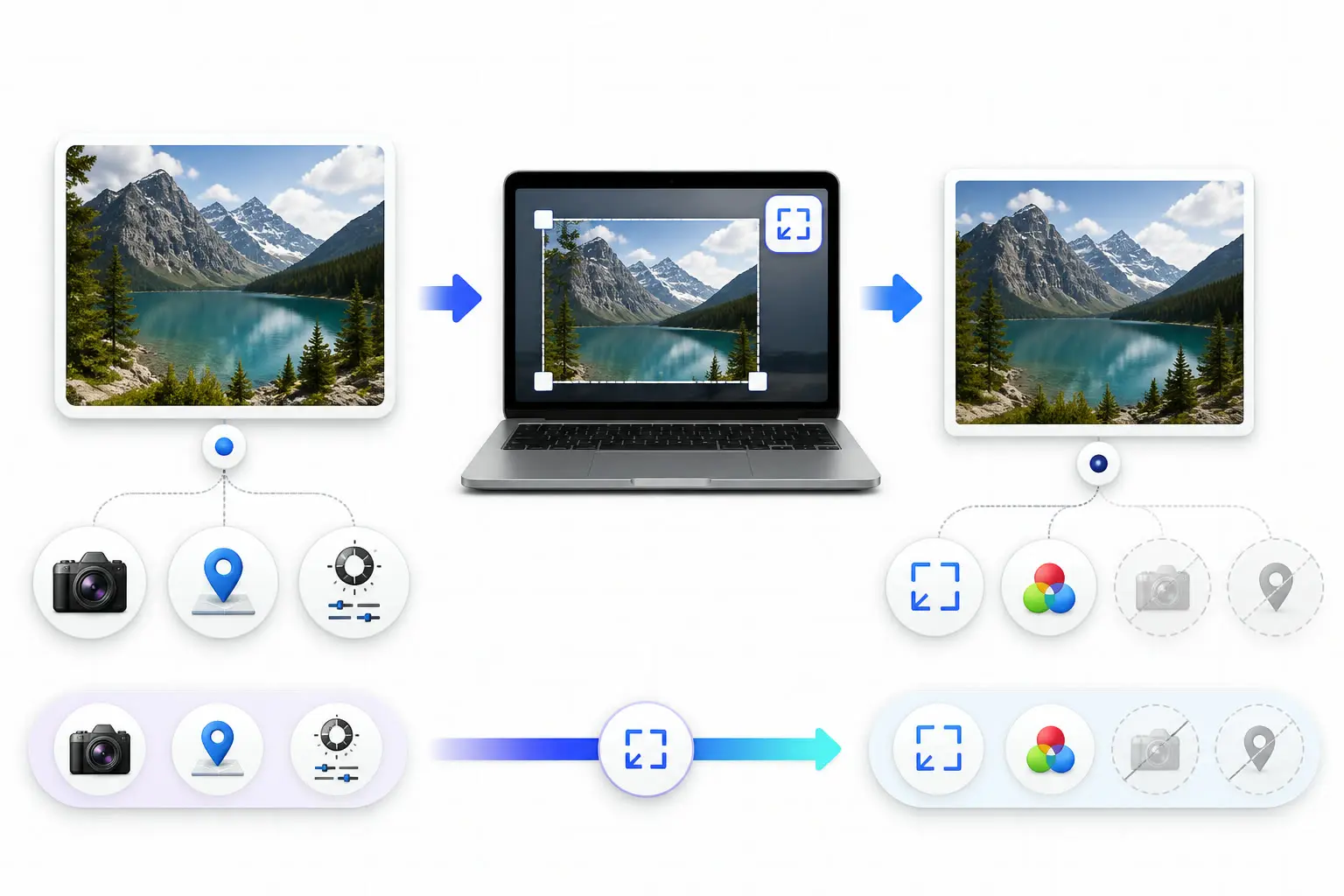
| Field | Original camera photo | Fresh screenshot |
|---|---|---|
| Camera make and model | May be embedded in EXIF | Usually not inherited |
| Lens and exposure | May be embedded in EXIF | Usually not inherited |
| GPS coordinates | May be embedded if location was enabled | Usually not inherited |
| Pixel dimensions | Present as image structure | Present for the captured screen area |
| Color profile | May be embedded | May be added by the capture workflow |
| Software or text fields | Possible | Possible, depending on the tool and later edits |
| Visible private information | Depends on the photo | Everything visible on screen can be captured |
This is also why sending a screenshot is not equivalent to running a dedicated metadata remover. A screenshot changes the image and may reduce its resolution, crop context, alter colors, and replace the original file format. A metadata cleaner can preserve the image payload when the format and selected cleanup mode allow it, while inspecting what it found before producing the output.
What metadata can a screenshot contain?
The exact answer depends on how the screenshot was created and handled. These are the main categories worth checking.
Image structure and display information
Every valid image needs structural data so software can decode it. Width, height, bit depth, color type, and compression information are not private camera records; they are part of how the file works. A color profile or gamma information may also be present so the image displays consistently.
Removing every non-pixel byte is neither practical nor desirable. Some structures are required, and some preserved fields help the screenshot display correctly. The useful privacy question is not “does the file contain any metadata at all?” but “does it contain optional information I do not want to share?”
Text, software, and edit history fields
PNG and JPEG containers can hold optional text or application-specific data. A screenshot utility may leave little beyond required image structures, while an editor may add a software name, editing timestamp, comment, XMP packet, or color-management data. Export presets can change this behavior.
If you annotate, crop, resize, or convert the screenshot, inspect the exported file rather than relying on the untouched capture. The exported copy is what your recipient receives.
Filesystem dates are not always embedded metadata
Finder and Windows File Explorer show dates such as Created and Modified. Those values can belong to the filesystem entry rather than the image payload. Copying, downloading, extracting, or moving a file between systems can change them. A recipient may see different filesystem dates even when the embedded image bytes are identical.
This difference explains why two tools can appear to disagree: one may report embedded EXIF/XMP, while another shows operating-system file properties. Both can be accurate within their own scope.
Filenames can reveal context
A filename such as Screenshot 2026-09-02 at 14.31.08.png reveals an approximate capture time without storing it in EXIF. A custom filename can expose a client, project, username, or internal ticket number. Renaming the file is a separate privacy step and does not change the image's embedded fields.
Visible pixels remain visible
A screenshot can expose information that no metadata tool can remove because it is part of the image itself. Look for notifications, contact names, email addresses, browser bookmarks, open tabs, account avatars, map pins, document titles, QR codes, order references, and reflections. Crop or redact these details before sharing, then inspect the newly saved result again.
Screenshot metadata on iPhone, Android, Windows, and Mac
Platform names alone cannot guarantee a field-by-field result. Versions, device manufacturers, capture modes, editors, and transfer methods all matter. The practical expectations below are a starting point, not a substitute for checking your own file.
iPhone and iPad
Usually PNGCamera, lens and source-photo GPS tags are normally not copied. Photos library data is separate.
Check the final file you will share.
Android
PNG or JPEG variesManufacturer, Android version, capture tool and export path can change the fields in the final file.
Check the final file you will share.
Windows
Usually PNGProperties can mix embedded image details with filesystem dates. Paint or Photos may rewrite the file.
Check the final file you will share.
macOS
Usually PNGThe filename carries a timestamp and the image may include dimensions and a display color profile.
Check the final file you will share.
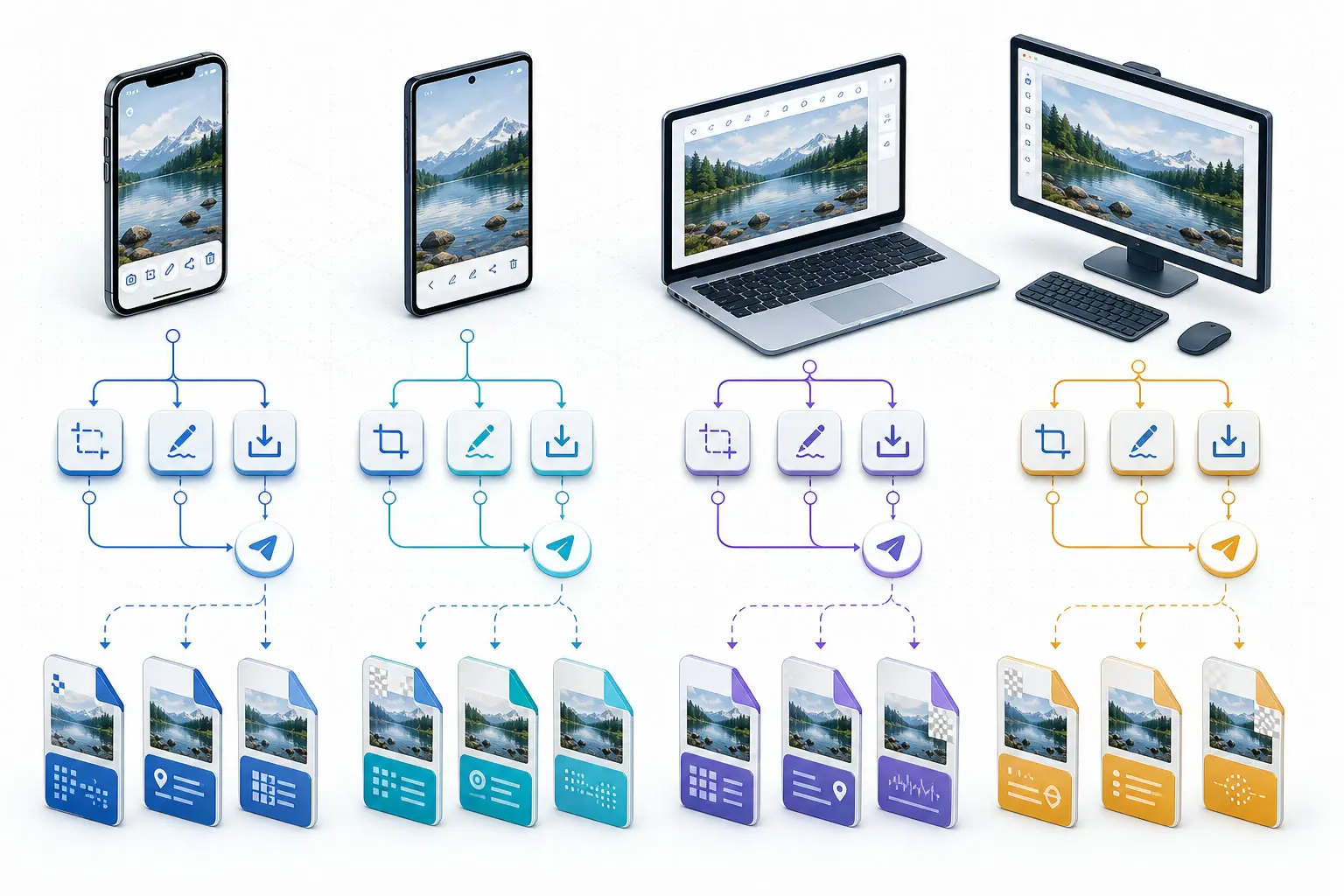
Apple explains that iPhone screenshots can be edited, shared, or saved after capture, and that full-page captures may be saved as an image or PDF. Google similarly notes that Android screenshots can be viewed, edited, and shared, while capture steps can vary by manufacturer. Microsoft documents multiple Snipping Tool modes and the ability to edit or save a capture. Those post-capture choices create multiple possible file paths rather than one universal screenshot output.
- Apple: Take a screenshot on iPhone
- Google: Take a screenshot on Android
- Microsoft: Use Snipping Tool to capture screenshots
- Apple: Take a screenshot on Mac
On desktop systems, remember that a screenshot placed on the clipboard is not yet the final image file. Pasting it into Paint, Preview, Photoshop, a chat app, or a document can create a different output. Inspect the downloaded or exported file that will actually leave your device.
How to check screenshot metadata before sharing
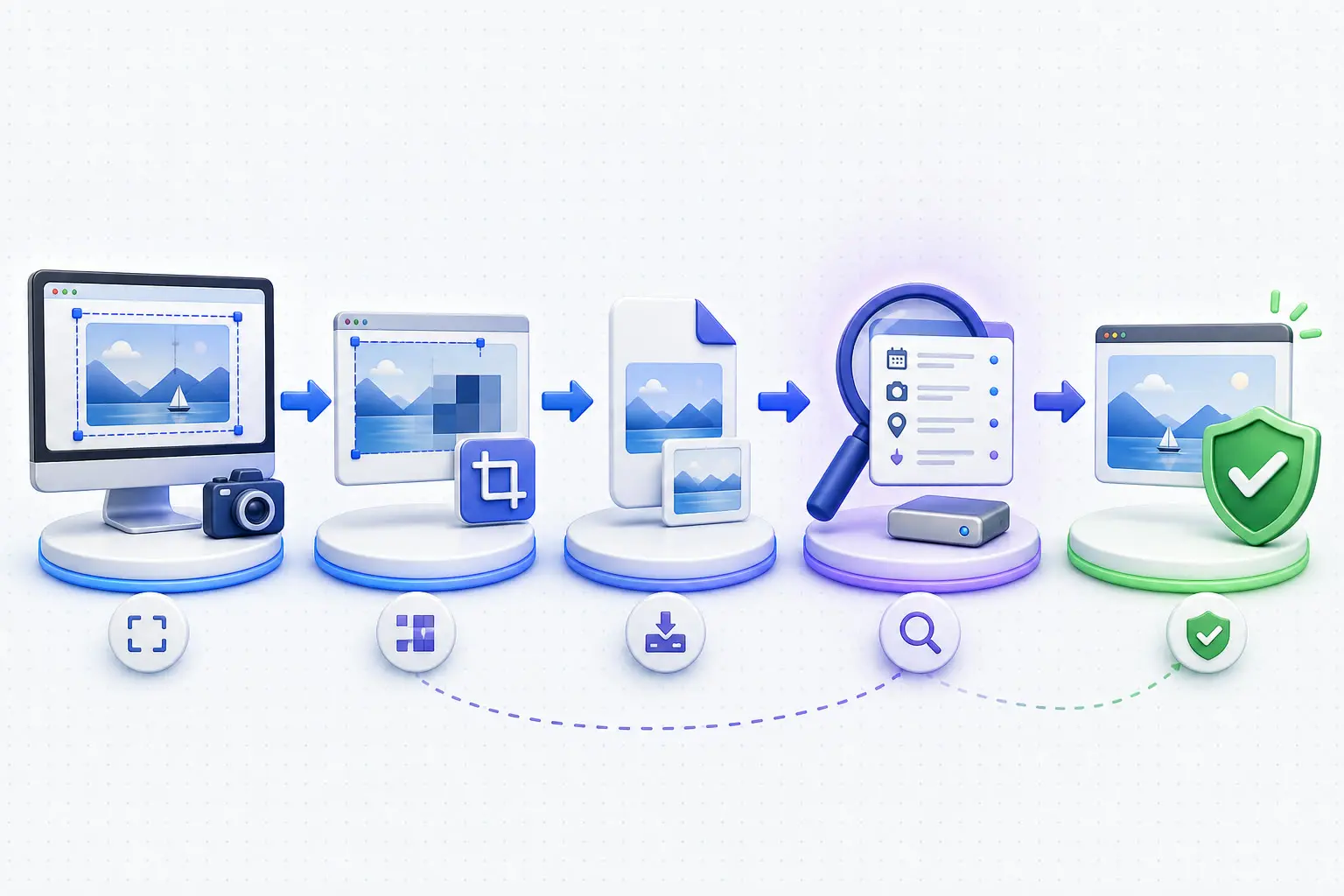
A repeatable test is more reliable than a platform-wide promise. You can use a harmless source image with known metadata markers, capture it, pass it through your intended edit or sharing route, and inspect the final result.
Source image
Start with known, harmless metadata markers.
New screenshot
Capture rendered pixels using the normal shortcut.
Edit or share
Test the same route the recipient will receive.
Inspect final file
Check embedded fields and visible pixels again.
1. Start with a controlled source
Use an image that does not contain real private information. Record a few known fields, such as a camera model, a dummy comment, and non-sensitive GPS coordinates. This gives you something concrete to look for after capture.
2. Capture the screen normally
Use the same shortcut or screenshot tool you would normally use. Avoid changing multiple variables at once. If you need to compare a standard screenshot with a scrolling capture, create separate files and label them clearly.
3. Follow the real sharing path
If you normally crop in Photos, annotate in Preview, convert in Paint, or upload through a messaging app, include that step. Some platforms preserve a file; others recompress it, strip fields, rename it, or generate a new derivative. The original screenshot on your device may not match the copy a recipient downloads.
4. Inspect the final file
Check the exact downloaded or exported image. Review recognized EXIF, GPS, XMP, text chunks, color profiles, and other structures. Then review the filename and visible pixels separately. If a parser reports an unknown structure, do not assume it is harmless or claim it was removed without verification.
Our browser-based image metadata remover can inspect supported JPG, PNG, WebP and HEIC/HEIF files locally. HEIC/HEIF inputs require conversion to JPG, PNG or WebP. It is useful for checking a screenshot without uploading the image to our server. For broader AI-related fields and provenance structures, the AI metadata remover explains the distinction between ordinary metadata and AI metadata. If your concern is specifically signed provenance, use the C2PA remover and read its scope and limitations before cleaning.
Do screenshots keep C2PA Content Credentials?
Usually, a conventional screenshot does not carry the source asset's embedded C2PA manifest into the newly captured file. The screenshot records rendered pixels, while an embedded C2PA manifest is stored in specific file structures. The C2PA specification, for example, defines JPEG manifest storage in APP11 segments and PNG manifest storage in a caBX chunk.
However, this is not a guarantee that every provenance signal disappears. C2PA supports externally stored manifests as well as embedded ones. Platforms can also maintain their own records or labels outside the downloaded image. A visible Content Credentials icon or watermark captured on screen becomes part of the screenshot pixels. None of those cases is equivalent to an embedded manifest copied from the source.
There is another important limitation: removing an embedded manifest does not prove that an image was never associated with Content Credentials, and it does not erase external platform records. The C2PA technical specification describes both embedded and external structures. Treat file inspection as evidence about the tested file, not a universal statement about every copy or service.
A practical privacy checklist for screenshots
Before you publish, attach, or send a screenshot, use this quick review:
- Inspect the final exported file. Do not inspect only the source or the first capture.
- Check embedded fields. Look for EXIF, GPS, XMP, comments, software tags, and optional PNG chunks.
- Review the filename. Remove dates, names, projects, or internal references when they are unnecessary.
- Scan every visible corner. Notifications and browser UI often appear at the edges.
- Redact, do not merely blur, sensitive text. Weak blur can leave shapes recognizable; cover and flatten the result.
- Check the post-edit copy again. Editing software can add or rewrite fields.
- Download your own upload when possible. The platform-delivered file may differ from the one you submitted.
- Keep claims narrow. Say what your tested file contains, not what every screenshot on that platform must contain.
This workflow takes slightly longer than assuming “screenshots remove metadata,” but it answers the question that matters: what information is present in the file and pixels you are about to share?
Frequently asked questions
Do screenshots contain EXIF data?
They can, because EXIF-capable formats and editing tools can add fields. A fresh screenshot usually does not inherit the original camera photo's make, model, lens, exposure, or GPS EXIF. Inspect the final screenshot rather than assuming the EXIF block is empty.
Can screenshots have metadata added by apps?
Yes. A capture, annotation, conversion, or publishing app can write software names, timestamps, text fields, color profiles, or other metadata into the copy it saves. Check the file after the last app in your workflow, not only the screenshot immediately after capture.
Can a screenshot reveal my location?
The original photo's GPS coordinates are usually not copied into a fresh screenshot, but location can still be visible in a map, place name, weather widget, notification, filename, or other on-screen content. An app used after capture could also add new metadata.
Do screenshots contain personal metadata?
They can. Personal details may appear in embedded fields, the filename, file-system context, or the visible pixels. The exact result depends on the device, capture method, editing apps, and sharing path, so inspect the final copy and review what the image visibly shows.
Does a screenshot remove metadata?
A screenshot normally creates a new image that does not inherit most metadata from the source photo. It does not clean the original photo, and it can introduce its own file information. The screenshot may also reduce quality or alter the image, so it is not a direct replacement for metadata cleaning.
Do Windows screenshots have metadata?
Windows screenshots can contain image structure, dimensions, color information, and fields written during saving or editing. File Explorer may also display filesystem dates that are not embedded in the image. Snipping Tool, Print Screen plus an editor, and third-party capture apps can produce different files.
Do iPhone screenshots have location data?
A normal iPhone screenshot generally does not inherit GPS coordinates from the photo or map shown on screen. The Photos library can still manage the screenshot with library-level dates or context, and the pixels may visibly reveal a location. Check the exported file you intend to share.
Is a screenshot safe to share after its metadata is removed?
Not automatically. Metadata removal does not hide text, faces, tabs, notifications, QR codes, or map details visible in the pixels. Review and redact the image, rename it if needed, then inspect the final saved copy.
Related articles
Privacy & Sharing
Does Discord Remove Metadata from Photos? We Tested JPG, PNG and WebP
Our file tests show why Discord attachments and saved previews can retain different metadata, including EXIF and ComfyUI workflows.
Privacy & Sharing
Instagram Labeled My Post as AI? What to Check Next
Find out why a real photo can receive an AI label, check what happened on an existing post, and understand what inspecting an upload file can tell you.