
Privacy & Sharing
Instagram Labeled My Post as AI? What to Check Next
Find out why a real photo can receive an AI label, check what happened on an existing post, and understand what inspecting an upload file can tell you.
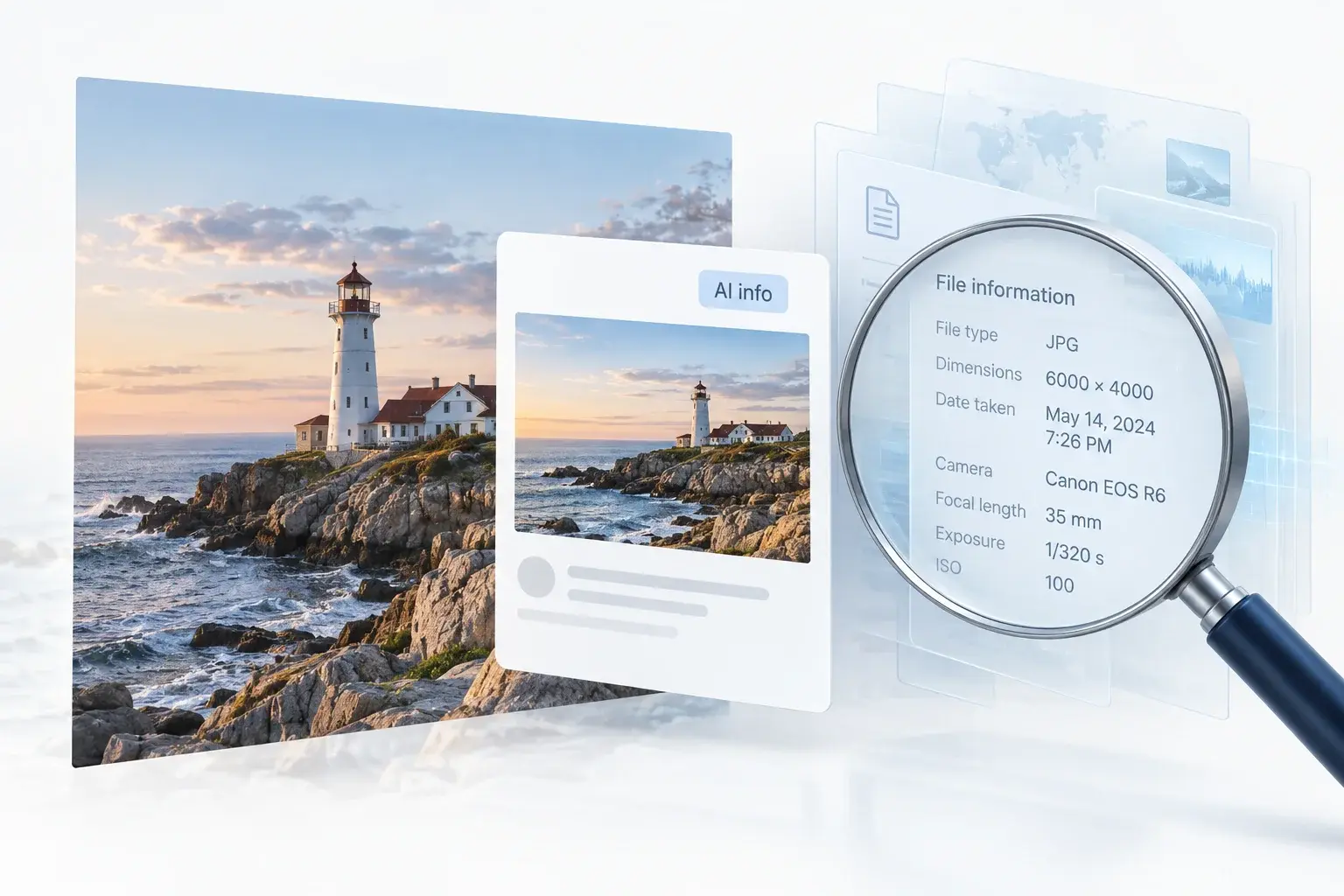
If you're asking, “Why has Instagram labeled my post as AI?”, the label may reflect an AI-assisted editing step or a disclosure. Read the explanation attached to the label first. A real camera photo can receive a label after an edit; the label alone does not mean the whole picture was generated.
Already published? Editing or cleaning a file on your device will not change the label on an existing post. Not posted yet? Inspect the final export to see what embedded information it contains. Removing supported metadata changes the file, but does not guarantee how Instagram will label it.
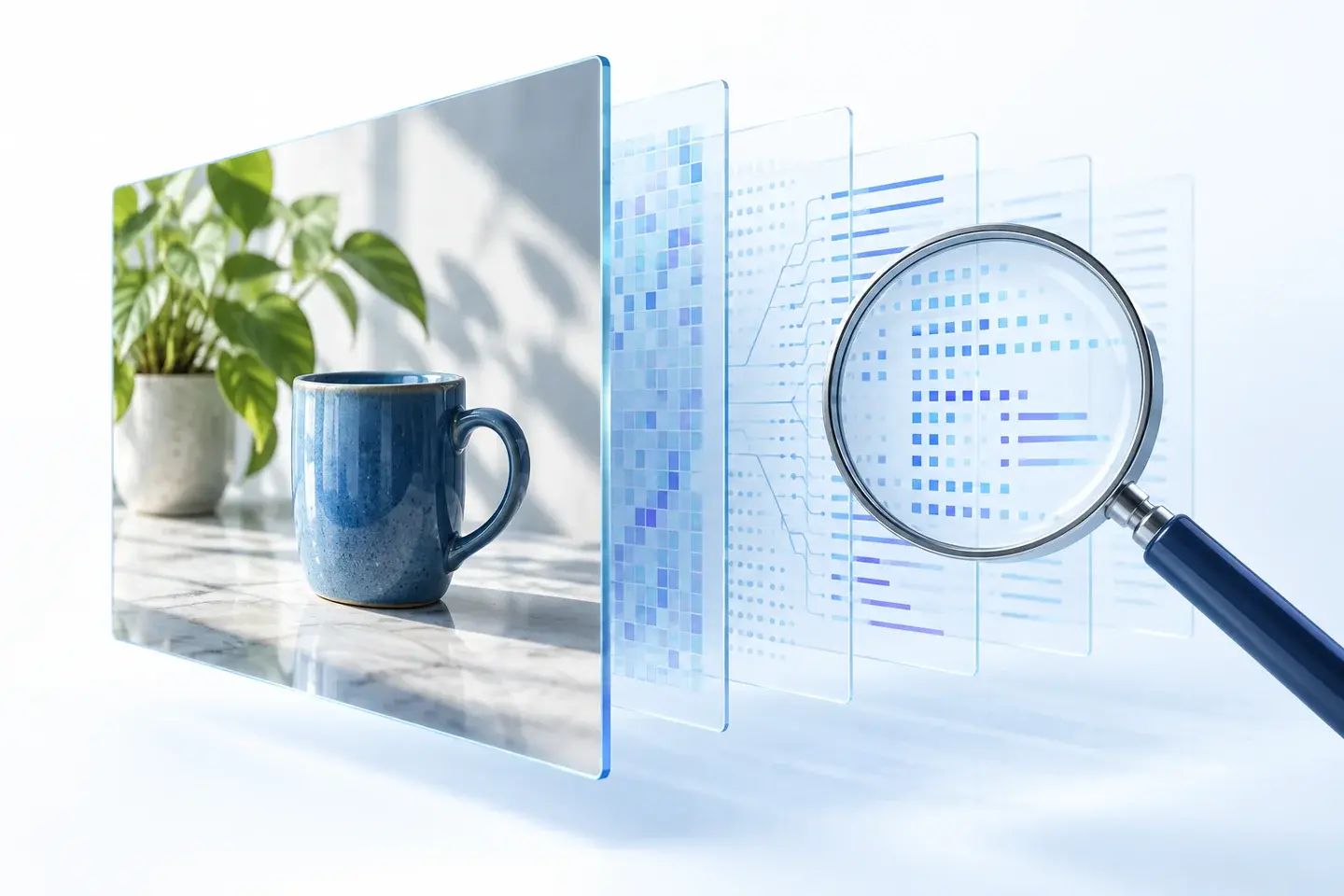
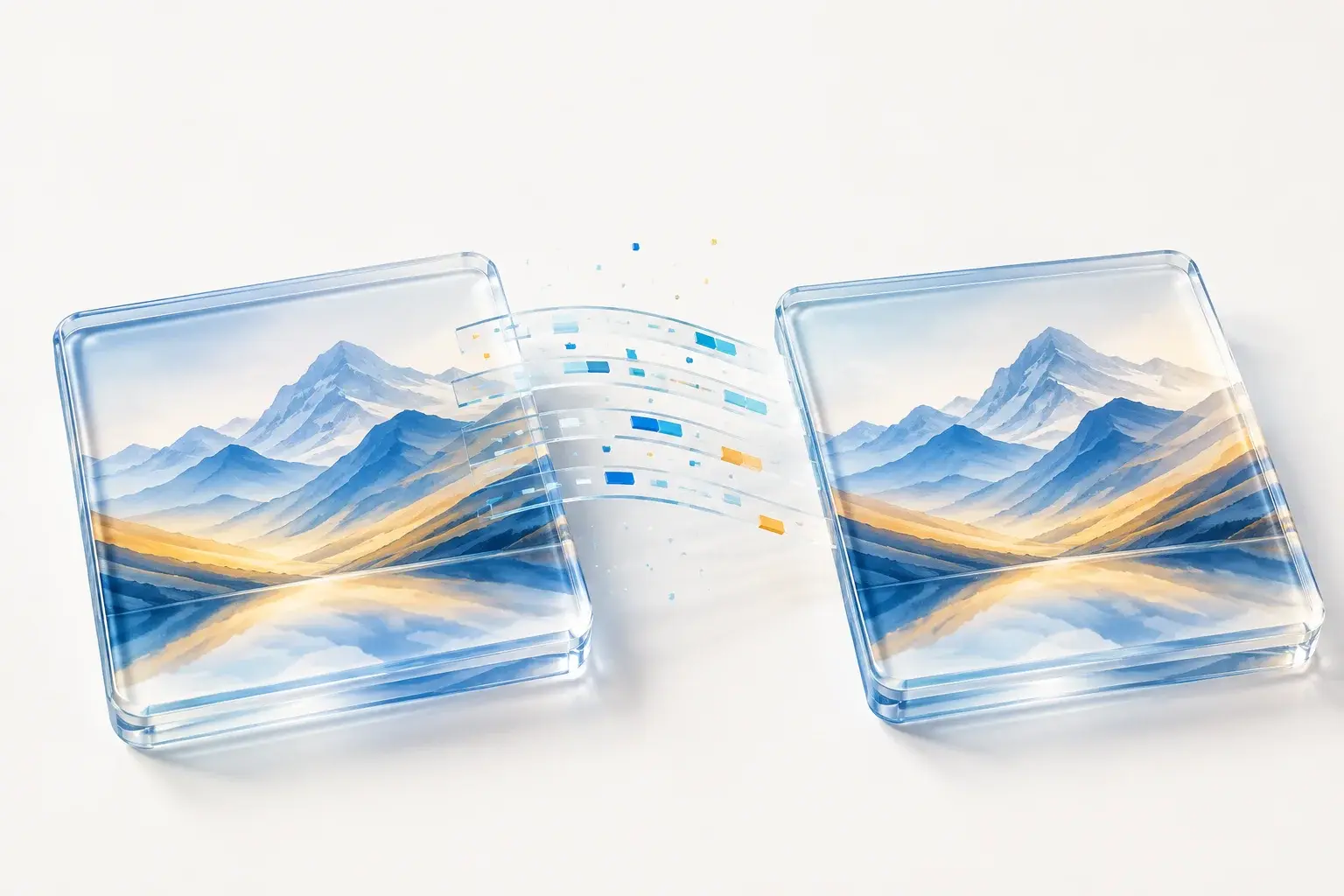
This guide separates Meta's published explanations from local file checks. The cover and lighthouse comparisons are conceptual illustrations, not photographs tested on Instagram.
What if Instagram already labeled my post as AI?
Start with the published post, not the copy on your computer. Read the available label explanation to see whether it refers to a disclosure or a detected signal.
- Record the label explanation. Save its wording so you can compare it with your own editing and posting history.
- Review your own actions. Check whether you selected an AI disclosure when posting and whether an editor used an AI feature before export.
- Keep supporting files. Preserve the camera original, edited export, and a screenshot of the label if you need to explain a disputed result.
- Check the options available for that post. If Instagram offers an editing, correction, or reporting option, read what it applies to before using it. An older tutorial's toggle may not exist or apply to an automatically added label.
A label on an account or profile is a different issue from a label on a photo. A metadata tool cannot change account settings. We have not verified a universal “remove AI label” button, and deleting and reposting is not a guaranteed fix.
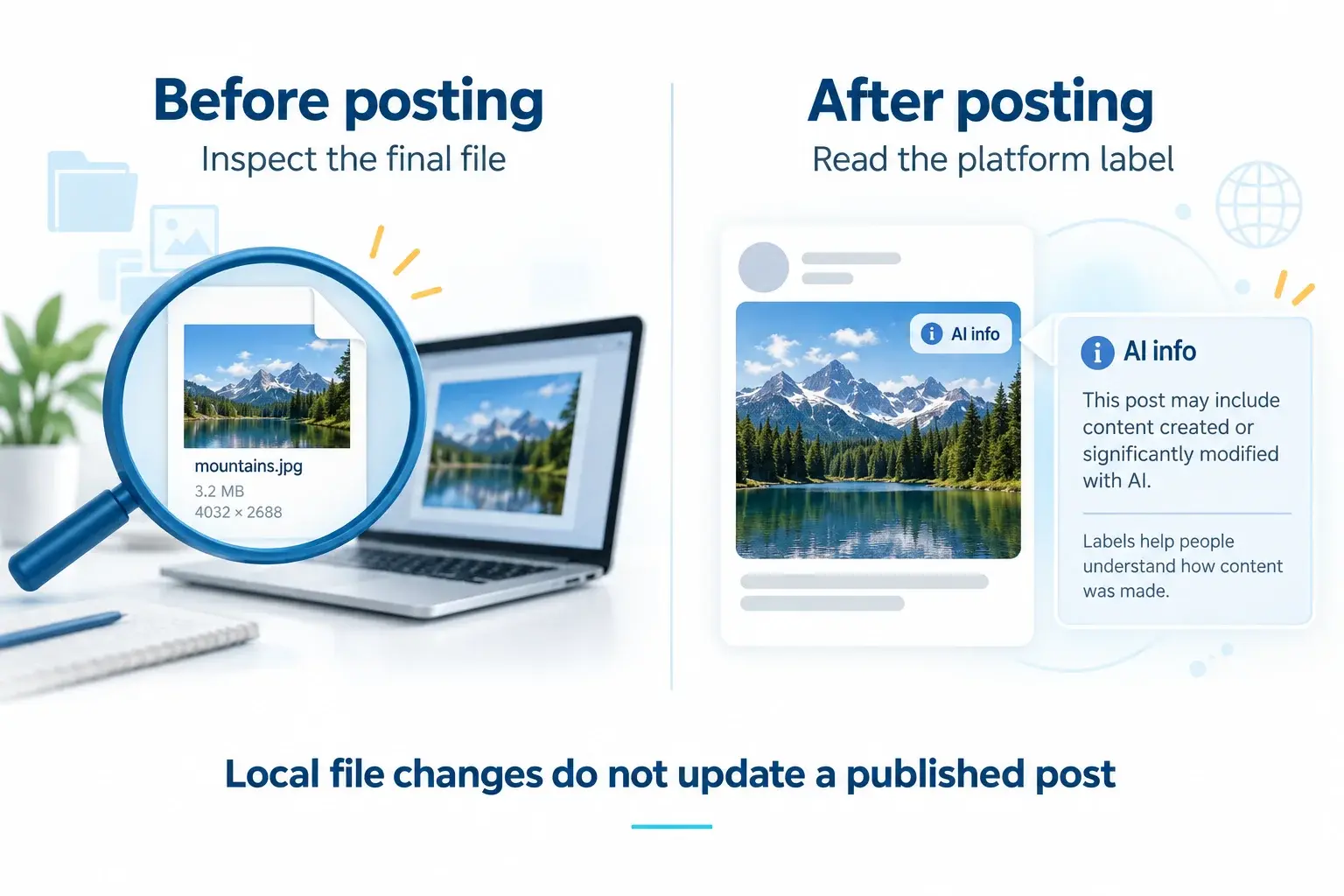
Why a real photo can get an Instagram AI label
A photo's appearance and its processing history answer different questions. You may have taken the picture yourself, then used an AI feature to replace part of the background. The exported file can describe that assistance even though most of the scene came from your camera.
This is not just a hypothetical explanation. In its July 2024 labeling update, Meta acknowledged that minor AI modifications could include industry-standard indicators and receive a “Made with AI” label. It changed that wording to “AI info” to provide more context.
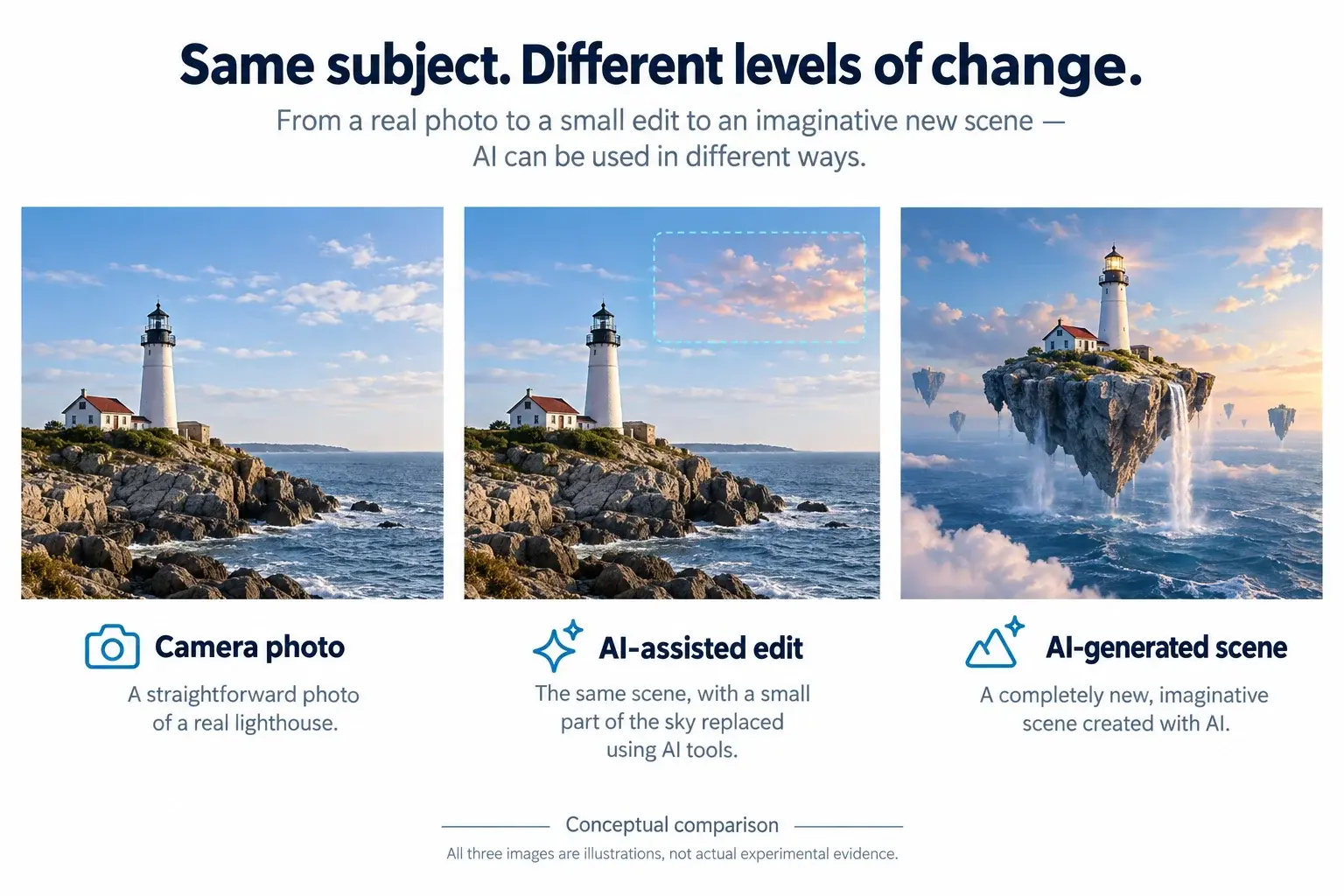
Meta's September 2024 update also described different placement for detected AI edits and AI-generated content. That dated announcement is useful context, not a promise that every account now displays the same wording or menu. Read what your own post says rather than following an old screenshot as if it were a universal interface.
If you are asking why Instagram is labelling everything as AI, avoid jumping from several unexpected labels to a single explanation. Keep the original, the edited export, and the label details. Without those, you cannot reliably tell whether an export signal, a disclosure, or another platform decision explains your particular post.
How to inspect the photo before posting
Inspect the final export, not just the original camera file. If you edited, resized, or converted an image, keep both versions so you can compare what each file contains.
Open our AI metadata inspector and select the image. Inspection happens locally in your browser. Expand the file's results and distinguish entries the tool recognizes from structures it cannot confidently interpret. You do not have to clean the file to inspect it.
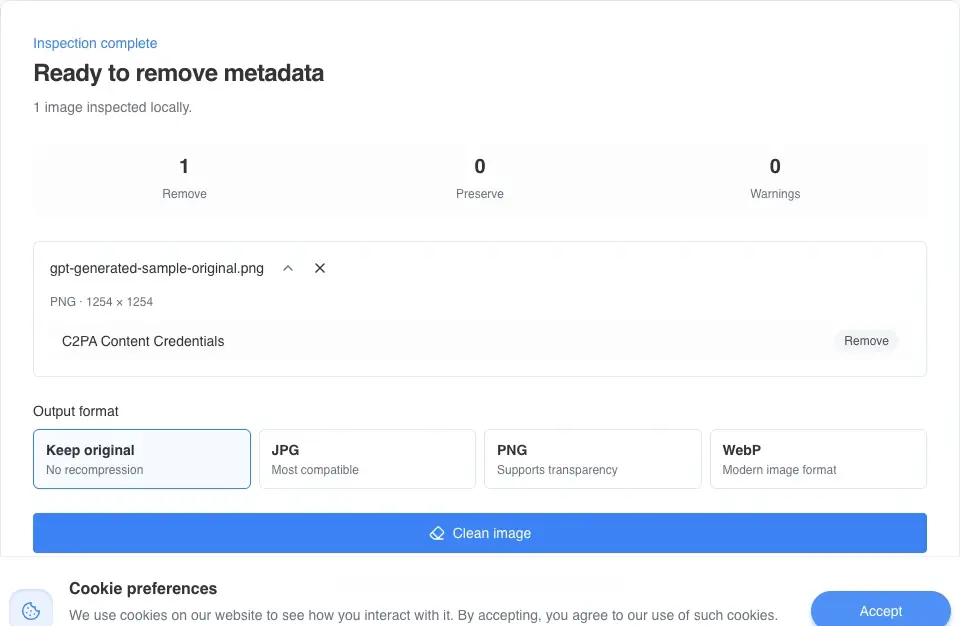
For this screenshot, we used the unchanged sample from our GPT image metadata analysis. That article provides the original file and parsed evidence. The inspection shown here recognizes a C2PA container; it does not validate its signature or show all of its internal declarations.
We did not upload this sample to Instagram. It demonstrates a file-level check, not a platform labeling test, and does not establish how an unedited camera photo would behave.
If you decide to prepare a sharing copy, keep the original and follow our tested metadata removal workflow. Reinspect the downloaded copy to check the file result. Do not turn that result into a guarantee about platform labels, and do not treat cleanup as a substitute for an applicable disclosure requirement.
What does Instagram use to label AI content?
Meta's 2026 explanation of AI content labeling describes industry standards and technology, including C2PA, and distinguishes industry-shared signals from self-disclosure. It does not publish a complete recipe for reproducing every labeling decision.
| Field | What it tells you | What it does not establish |
|---|---|---|
| Industry-shared signals | Meta describes using standards such as C2PA to help identify AI-created or edited content. | A local scan cannot reproduce the complete platform decision. |
| Self-disclosure | Someone has disclosed AI use through the platform. | That disclosure does not have to be a field in your local image file. |
| An embedded metadata entry | The chosen reader recognized information in the particular file you supplied. | The entry alone does not prove why a specific post received a label. |
So, does Instagram only use metadata to detect AI images? Do not assume that. File-related signals and self-disclosure are different inputs. A local scan may show that a file contains C2PA, but it cannot establish why Instagram labeled a particular post.
Not every metadata entry is an AI signal, either. A camera model, image dimensions, or a generic editing-history record is not, by itself, proof of generative AI use. C2PA is a provenance standard, not a synonym for “AI-generated.” What a record actually declares matters.
Frequently asked questions
How do I get rid of an AI label on Instagram?
First identify what the label represents. Review the explanation and any editing options Instagram currently offers for the post. A local metadata cleaner can change a supported file, but it cannot edit your account or remove a label from a published post. We cannot promise that uploading a cleaned copy will prevent another label.
Does an AI label mean the whole photo is fake?
No. Meta has acknowledged that small AI edits could produce indicators used in labeling. The label alone does not tell you how much of the scene changed. It also does not establish that the scene is true: provenance information and factual accuracy are different questions.
Can a Canva or Photoshop edit explain the label?
AI-assisted editing is a plausible reason to investigate, not a diagnosis based on the app name. Preserve the actual exported file and check what it contains. We did not run a current Canva or Photoshop export-and-post comparison for this article, so we do not list individual buttons as guaranteed triggers.
Will a screenshot prevent an AI label?
A screenshot creates a different file, but that does not guarantee how a platform will classify it. It may also reduce image quality or include visible private information. Our screenshot metadata guide explains the file-level distinction without promising label avoidance.
Does an empty metadata result prove there was no AI use?
No. Information may be absent, removed, or unsupported by the reader. A metadata scan cannot establish everything about an image's creation. Report the limited finding: the reader did not detect supported entries in that file.
Will the label reduce my reach?
This article does not establish an effect on reach. We have not run a controlled engagement study, and the cited labeling explanations do not support a universal percentage loss. Treat claims of a fixed penalty separately from the question of why a label appeared.
Related articles
AI Metadata & Content Credentials
Do ChatGPT-Generated Images Have Metadata? What the File Can Reveal
See the source, action, and time fields inside a real GPT-generated image, and understand what they do not tell a recipient about your prompt or identity.
AI Metadata & Content Credentials
How to Remove AI Metadata from Photos: A Tested Guide
Follow a real ComfyUI image from its original prompt and workflow data to a cleaned download, then check exactly what changed.

Privacy & Sharing
Do Screenshots Have Metadata? What They Keep, Drop, and Reveal
Screenshots can contain metadata, but usually not the original photo's EXIF or GPS. Learn what survives, what changes, and what to check before sharing.